Best Laptop for Video Editing in 2026: MacBook Pro M5 Pro or M5 Max, Legion Pro 7i or Zenbook Duo for Premiere Pro and DaVinci Resolve?

video editing laptop best video editing laptop 2026 4k video editing laptop best laptop for davinci resolve macbook pro or windows laptop for editing premiere pro laptop macbook pro m5 pro legion pro 7i

Which laptop should you choose for video editing in 2026? MacBook Pro M5 Pro and M5 Max, Lenovo Legion Pro 7i and ASUS Zenbook Duo compared for Premiere Pro, DaVinci Resolve and Final Cut Pro: memory, graphics card, hardware codec decoding, display and ports, based on manufacturer spec sheets.

The short answer: which laptop for video editing in 2026?

To edit 4K on a laptop, three things matter more than anything else: at least 32 GB of memory, a chip or graphics card that decodes your camera files in hardware, and an accurate display. The processor comes right behind, and the internal SSD should be at least 1 TB.

In short: the MacBook Pro 16 M5 Pro is the best-balanced choice for Final Cut Pro, Premiere Pro and DaVinci Resolve: long battery life, the same performance on battery and a dedicated ProRes video engine. The MacBook Pro M5 Max is aimed at multicam, 8K and heavy color grading. On the Windows side, the Lenovo Legion Pro 7i brings a big RTX 50 graphics card that is very useful in Resolve, and the Zenbook Duo bets on its two OLED screens for a comfortable timeline on the go.

To edit on a fixed workstation instead, read our guide to the best CPU for video editing.

Laptop Chip / graphics card Memory and SSD (configuration cited) Display Who is it for?
Apple MacBook Pro 16 M5 Pro M5 Pro 18-core CPU, 20-core GPU 24 GB, 1 TB 16.2-inch Mini-LED 120 Hz The best choice for most editors
Apple MacBook Pro 14 M5 Pro M5 Pro 15-core CPU, 16-core GPU 24 GB, 1 TB 14.2-inch Mini-LED 120 Hz Editing on the go, 1.60 kg
Apple MacBook Pro 16 M5 Max M5 Max 18-core CPU, 40-core GPU 48 GB, 2 TB 16.2-inch Mini-LED 120 Hz Multicam, 8K, heavy color grading
Lenovo Legion Pro 7i (16IAX10H) Core Ultra 9 275HX, RTX 5080 Laptop 16 GB 32 GB, 2 TB 16-inch OLED 2560 × 1600 240 Hz Raw power, editing and gaming
ASUS Zenbook Duo (UX8406CA) Core Ultra 9 285H, integrated Intel Arc 32 GB, 1 TB Two 14-inch 3K 120 Hz OLED screens Light editing, two-screen timeline
Swipe to view more

What really matters when editing on a laptop

  • Memory: 32 GB for 4K. 16 GB is fine for 1080p or light 4K with proxies, but 32 GB is the real starting point for Premiere Pro or DaVinci Resolve in 4K, and 48 to 64 GB for multicam, heavy effects or After Effects. On a MacBook and on most thin laptops the memory is soldered: choose it when you buy.
  • Hardware decoding of your files. This is what makes a timeline smooth without proxies. Apple chips have a video engine (Media Engine) that handles H.264, HEVC, ProRes and ProRes RAW. On the PC side, RTX 50 cards add hardware decoding and encoding of H.264 and 10-bit 4:2:2 HEVC, the format of many recent hybrid cameras.
  • The graphics card and its memory. DaVinci Resolve leans heavily on the GPU for color grading, noise reduction and AI effects. The more video memory (16 GB on an RTX 5080 Laptop, 24 GB on an RTX 5090 Laptop), the more nodes you can stack in 4K or 6K.
  • The display. Look for a panel covering DCI-P3, ideally OLED or Mini-LED to judge HDR. For grading meant for broadcast, a calibrated external monitor is still preferable: see our guide to the best monitor for graphic design and video editing.
  • Storage and ports. 1 TB internal at the very least, then a fast external SSD for your rushes: a Thunderbolt 4 or 5 port and an SD card reader save precious time when offloading.

MacBook Pro or Windows laptop for video editing?

Both work very well, and the answer mostly depends on your software and your files. Final Cut Pro only exists on Mac, and MacBook Pros keep their full performance on battery, without noisy fans during an export. Windows laptops with an RTX 50, on the other hand, offer more raw graphics power in DaVinci Resolve and in the GPU-accelerated effects of Premiere Pro, and often more memory for a comparable budget.

Criterion MacBook Pro M5 Pro / M5 Max Windows laptop with RTX 50
Hardware-accelerated codecs H.264, HEVC, ProRes, ProRes RAW, AV1 decoding H.264, HEVC (including 10-bit 4:2:2), AV1 depending on the card
Software Final Cut Pro, Premiere Pro, DaVinci Resolve Premiere Pro, DaVinci Resolve (no Final Cut Pro)
Performance on battery Identical on mains and on battery Much reduced on battery, full performance on mains
Memory Unified, shared between CPU and GPU, soldered System memory plus dedicated video memory
Noise during export Quiet Audible fans with a high-end GPU
Gaming Limited Excellent
Swipe to view more

Apple MacBook Pro 16 M5 Pro: the best choice for most editors

Released in March 2026, the 16-inch MacBook Pro with the M5 Pro chip has an 18-core processor (6 super cores and 12 performance cores) and a 20-core GPU, with 307 GB/s of memory bandwidth according to Apple. Its video engine accelerates H.264, HEVC, ProRes and ProRes RAW: most camera files play without proxies.

The 16.2-inch Liquid Retina XDR Mini-LED display (3456 × 2234) reaches 1000 nits in SDR and 1600 nits peak in HDR, at 120 Hz. The ports spare you adapters: three Thunderbolt 5, HDMI, an SDXC reader and MagSafe. Apple quotes up to 24 hours of video playback with the 100 Wh battery.

Our advice: the base configuration with 24 GB is enough for 4K in H.264, HEVC or ProRes, but aim for 48 GB if you do multicam or a lot of effects, because memory cannot be added later.

Apple MacBook Pro 16 M5 Pro (24 GB, 1 TB)

M5 Pro chip with 18-core CPU and 20-core GPU, 16.2-inch Mini-LED 120 Hz display, ProRes and ProRes RAW video engine, Thunderbolt 5, HDMI and SDXC reader.

Pros
  • Same performance on battery and on mains
  • Hardware decoding of ProRes, H.264 and HEVC
  • Long battery life, complete ports
Cons
  • Soldered memory: 24 GB is final
  • 2.14 kg
FranceCheck the price in my country

Apple MacBook Pro 14 M5 Pro: for editing anywhere

The 14-inch model uses the same chip family in a 1.60 kg body. The entry-level M5 Pro version (15-core CPU, 16-core GPU, 24 GB, 1 TB) is enough for everyday 4K editing. It keeps the SDXC reader, the HDMI port and the Thunderbolt 5 ports. The only limit: under a long load, the 16-inch dissipates heat better and offers a larger screen area for the timeline.

Apple MacBook Pro 16 M5 Max: the mobile editing workstation

The M5 Max chip doubles the GPU (up to 40 cores), also doubles the video and ProRes encode engines, and reaches up to 614 GB/s of bandwidth with up to 128 GB of unified memory according to Apple. It is the one to get for exporting several ProRes streams in parallel, editing in 8K or grading heavy projects in Resolve.

The configuration cited here (40-core GPU, 48 GB, 2 TB) is the most sensible for professional use. For a YouTube creator working in 4K, the M5 Pro is still more than enough.

Lenovo Legion Pro 7i: raw power for editing and gaming

The Legion Pro 7i Gen 10 (16IAX10H) pairs a 24-core Core Ultra 9 275HX with an RTX 5080 Laptop 16 GB, 32 GB of DDR5 and 2 TB of SSD, with a 16-inch 2560 × 1600 OLED display at 240 Hz. The HX processor, more power-hungry than an H, speeds up exports and the effects that rely on the CPU.

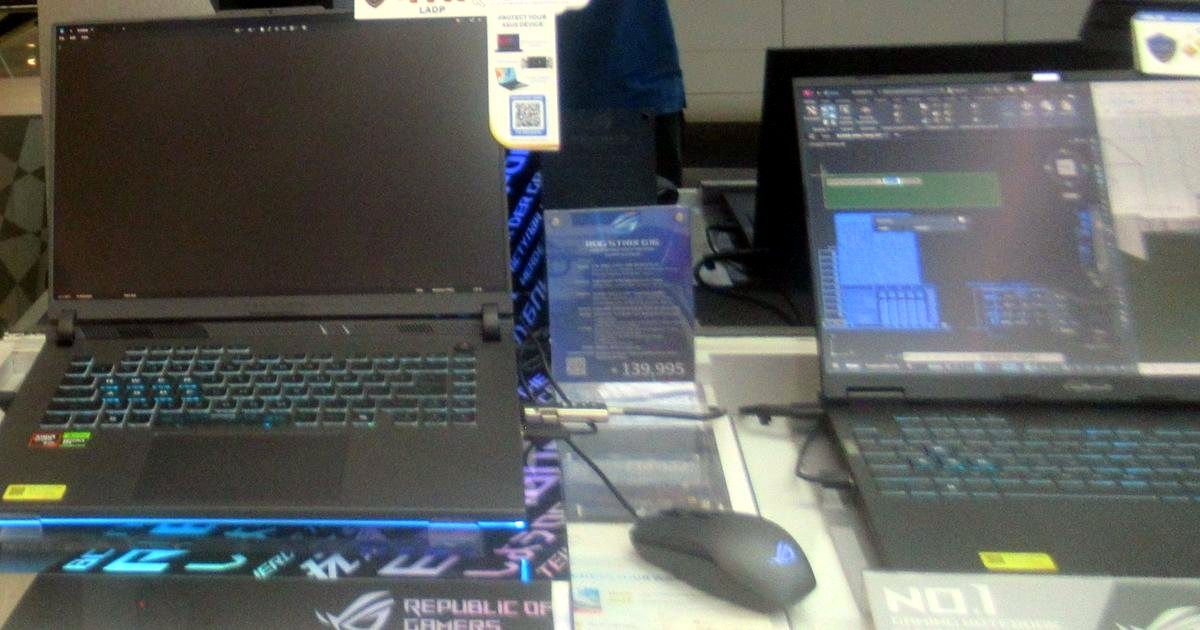
It is a gaming laptop first: it is heavier and louder than a MacBook Pro under load, and its battery life when editing stays modest. If you mostly edit on mains power and also play games, it is an excellent compromise. To compare with other models of this size, see our selection of the best 16-inch gaming laptop.

ASUS Zenbook Duo: two screens for the timeline

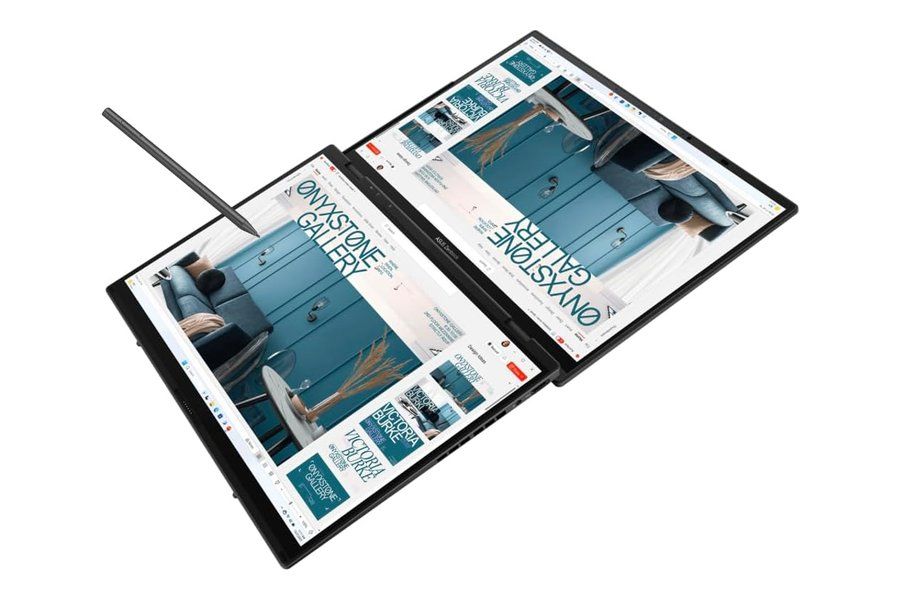
PC portable ASUS Zenbook Duo ouvert avec ses deux écrans OLED 14 pouces et son stylet Click to enlarge

The Zenbook Duo (UX8406CA) lines up two 14-inch OLED touchscreens in 3K at 120 Hz, a detachable keyboard, a Core Ultra 9 285H, 32 GB of memory and 1 TB of SSD. You can keep the preview on the top screen and the timeline on the bottom one, which really changes the comfort on a 14-inch laptop.

It has no dedicated graphics card: its Intel Arc graphics and Quick Sync hardware decoding handle 4K in H.264 or HEVC well in Premiere Pro, but it will quickly be limited by heavy color grading or noise reduction in Resolve. Best kept for YouTube editing, social media and travel.

Which configuration for your use?

  • 1080p editing, vlogs, social media. 16 GB can be enough, and a recent integrated graphics part or an RTX 5050 / 5060 will do. The Zenbook Duo or an entry-level MacBook Pro fits.
  • Regular 4K editing (YouTube, clients). 32 GB, an M5 Pro chip or an RTX 5070 at the very least, 1 TB internal plus an external SSD. MacBook Pro 14 or 16 M5 Pro.
  • Color grading, multicam, 6K or 8K. 48 to 64 GB, an M5 Max or an RTX 5080 / 5090 Laptop. MacBook Pro M5 Max, Legion Pro 7i.
  • Editing plus gaming. An RTX 5080 Laptop and a fast screen: Legion Pro 7i.

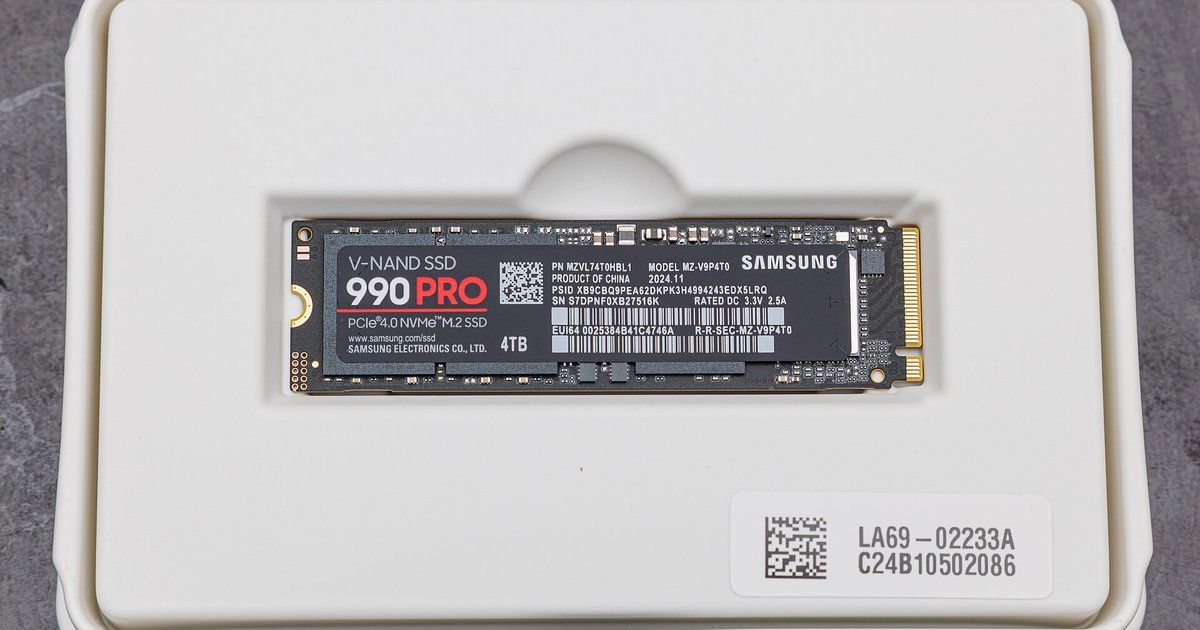
Storage matters as much as the chip: keep your project and cache on the internal SSD and your rushes on an external SSD over USB 3.2 or Thunderbolt. Our guides to the best SSD for video editing and the best external SSD help you choose.

Mistakes to avoid

  • Buying 16 GB of soldered memory to edit in 4K. You will not be able to add more: this is the most common mistake on an editing laptop.
  • Ignoring your camera’s codec. The 10-bit 4:2:2 HEVC of many hybrid cameras plays badly without suitable hardware decoding: check that your Apple chip or your RTX 50 card supports it.
  • Editing on battery with a gaming laptop. On Windows, the graphics card loses a good part of its power away from the outlet: plug it in to export.
  • Trusting a glossy screen for grading. Reflections distort your perception. Work in a controlled room or plug in a calibrated external monitor, for example through a single-cable USB-C monitor.
  • Neglecting the internal SSD. 512 GB fills up in a single 4K project. Aim for 1 TB at the very least, 2 TB if you keep several projects going.

FAQ

Is a MacBook Air enough for video editing?

For 1080p and light 4K, yes. But the MacBook Air has no fan: during a long export or a heavy project, its chip slows down to limit heat. For regular editing, the MacBook Pro is a better fit.

Is an RTX 5060 enough for Premiere Pro and DaVinci Resolve?

For 4K editing in H.264 or HEVC, yes, as long as you have 32 GB of system memory. Its 8 GB of video memory becomes limiting for heavy color grading and noise reduction in Resolve.

How much RAM for 4K video editing?

32 GB is the right starting point in 2026. Plan for 48 to 64 GB for multicam, 6K or 8K and After Effects compositions.

Can you use Final Cut Pro on a Windows laptop?

No, Final Cut Pro is Mac-only. On Windows, the alternatives are Premiere Pro and DaVinci Resolve, the latter also existing on Mac and Linux.

Is an OLED screen suitable for video editing?

Yes for judging contrast and HDR, provided you choose a panel covering DCI-P3 and keep a calibrated external monitor for critical deliverables.

Our verdict

For most editors, the MacBook Pro 16 M5 Pro remains the reference in 2026, and the M5 Max is the one for multicam and 8K. If you stay on Windows, the Legion Pro 7i brings the most GPU power, and the Zenbook Duo the best timeline comfort on the go.

Whatever you choose, take at least 32 GB of memory and plan an external SSD for your rushes. Building a desktop at the same time? Our guide to the best CPU for video editing will help you pick the chip.