Best USB-C Monitor 2026: One Cable for Your Laptop, MacBook or Handheld Gaming PC (P2725DE, PA279CRV, U3225QE, PD3226G, MPG 271QRX)

best usb-c monitor 2026 usb-c monitor 90w usb-c monitor 4k thunderbolt 4 monitor monitor for macbook pro monitor for macbook air usb-c kvm monitor for laptop usb-c monitor for gaming laptop monitor for handheld gaming pc

Which USB-C or Thunderbolt monitor should you choose in 2026 to connect a laptop, a MacBook or a handheld gaming PC with a single cable? Charging power (65, 90 or 140 W), 4K for Mac, KVM, RJ45 and a gaming option: our picks from the Dell P2725DE, ASUS ProArt PA279CRV, Dell U3225QE, BenQ PD3226G and MSI MPG 271QRX.

The short answer: which USB-C monitor for which device

A good USB-C monitor replaces a docking station: you plug in a single cable when you get to your desk, and your laptop gets a picture, charges, and picks up your keyboard, mouse and sometimes wired networking. That only works if the charging power suits your device, your laptop’s port can output video, and the resolution suits your operating system. Here are our picks for October 2026:

  • Windows laptop, office work and working from home: the Dell Pro 27 Plus P2725DE (90 W, RJ45), or the P2726DEV if you want a built-in webcam.
  • Tight budget with two computers: the MSI Modern MD272QXP (65 W and KVM).
  • Photo editing on a budget: the factory-calibrated ASUS ProArt PA278CV.
  • MacBook Air or 14-inch MacBook Pro: the ASUS ProArt PA279CRV, a 27-inch 4K monitor with 96 W.
  • 16-inch MacBook Pro or a full workstation: the Dell UltraSharp U3225QE (Thunderbolt 4, 140 W, 2.5 GbE).
  • Creators who also game: the BenQ PD3226G, 4K at 144 Hz over Thunderbolt 4.
  • Gaming laptop or handheld gaming PC: the MSI MPG 271QRX QD-OLED, 360 Hz with 90 W USB-C.
  • Replacing two monitors: the Dell P3424WE ultrawide.

Still torn between one big monitor and two smaller ones? Our dual-monitor PC guide covers it. And to track availability for every model, our monitor stock page is updated continuously.

What a real USB-C monitor should do over a single cable

Not all USB-C ports are equal, on the monitor or on the computer. For the single-cable setup to really work, four functions have to go through the same cable:

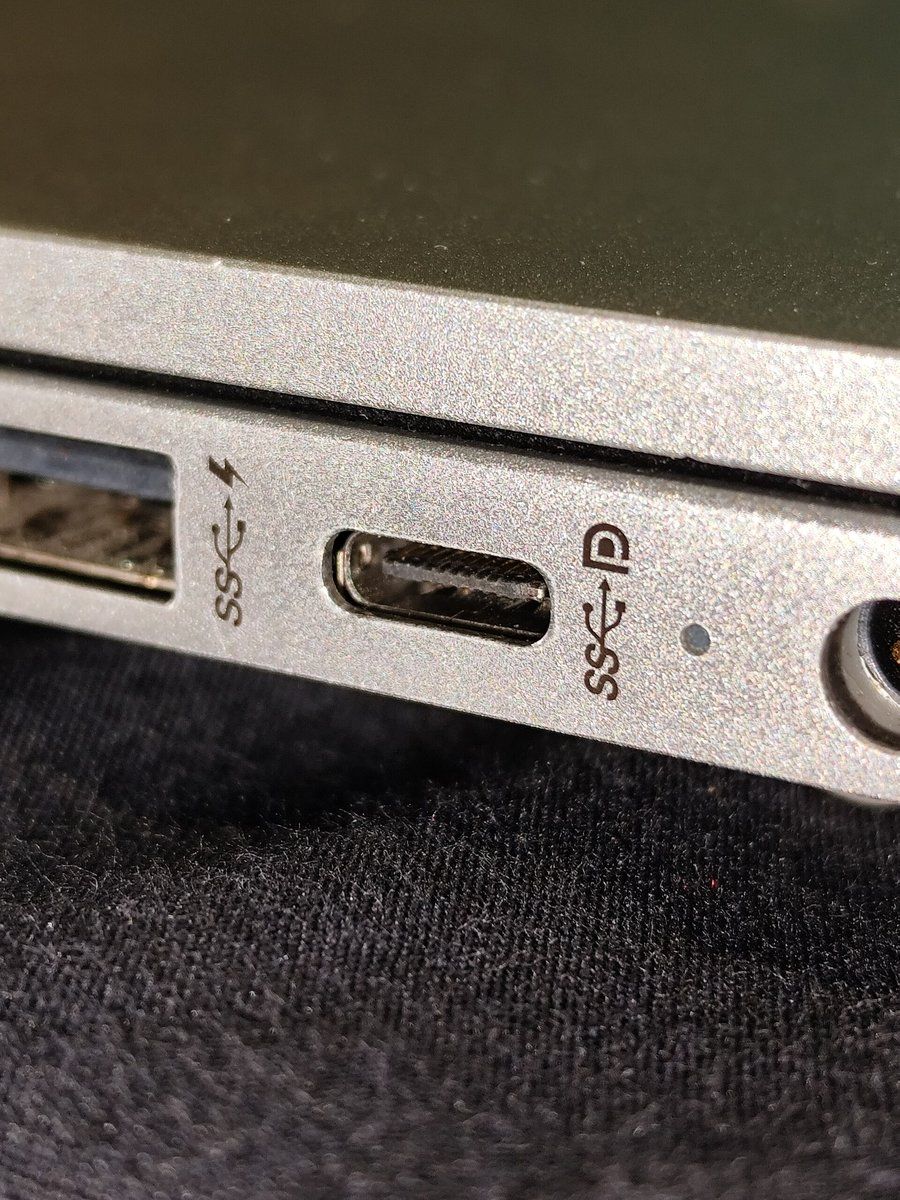
  • Video (DisplayPort Alt Mode): this is the bare minimum. On your laptop, look for the small DP logo or the Thunderbolt bolt next to the USB-C port. Without it, the port does not output video.
  • Charging (USB Power Delivery): the monitor powers your laptop. 65 W is enough for an ultrabook, 90 to 100 W suits most 14-inch MacBook Pros and 15-inch laptops, and only a few Thunderbolt monitors go up to 140 W.
  • USB hub and networking: keyboard, mouse, webcam and USB stick plug into the monitor. A built-in RJ45 port saves you from flaky Wi-Fi on video calls.
  • KVM: a built-in switch that shares the keyboard and mouse between two computers, for example a desktop PC on HDMI or DisplayPort and a laptop on USB-C.
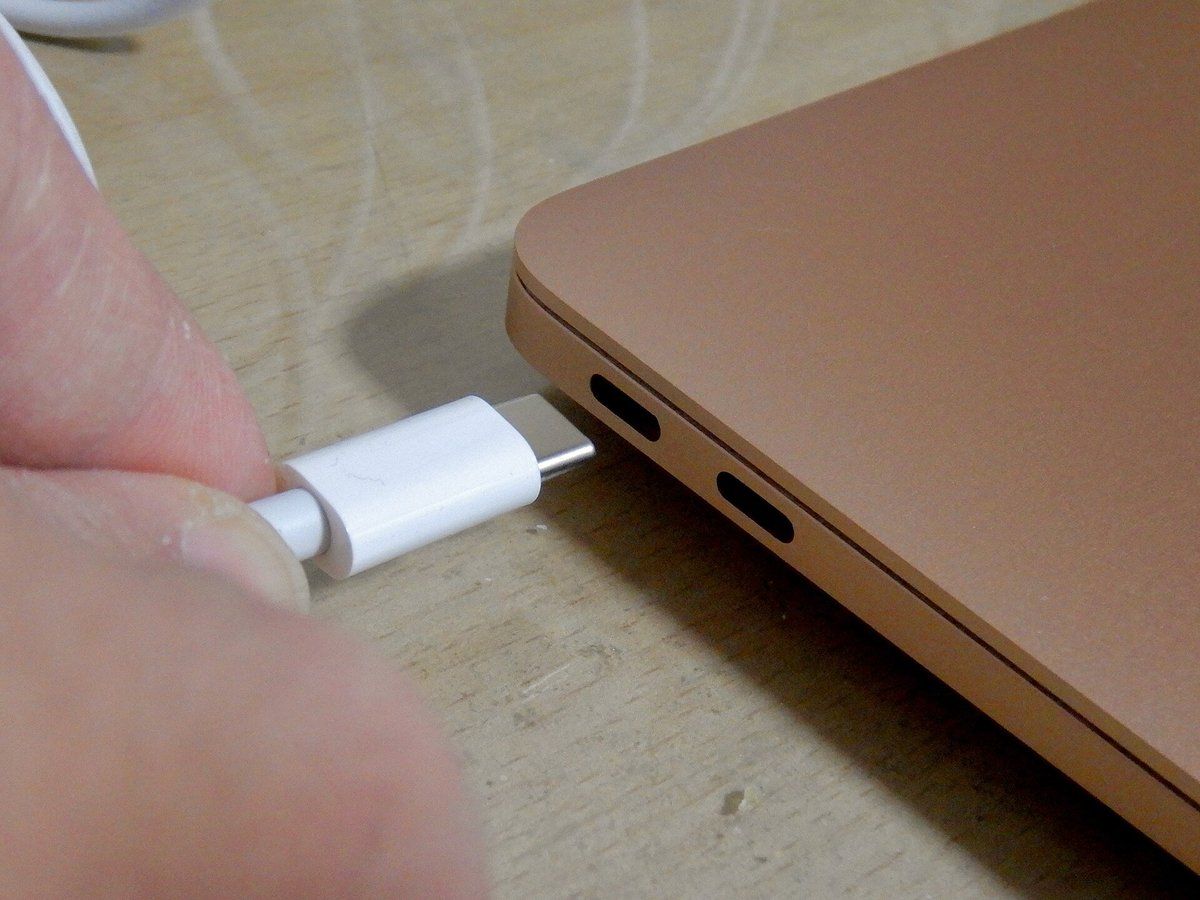
Port USB-C d’un ordinateur portable avec le logo DisplayPort Click to enlarge

In the photo above, the DP logo next to the USB-C port shows that it outputs video. On a recent MacBook, every USB-C port is a Thunderbolt port, so there is nothing to check. On a handheld gaming PC such as the ROG Xbox Ally X, Legion Go S or Steam Deck, the USB-C port also outputs video over DisplayPort.

How much charging power for your laptop, MacBook or handheld?

This is the most overlooked spec. If the monitor supplies less power than your device needs, nothing breaks: it charges slowly, or even drains under heavy load. The table below gives the rough figures to aim for.

Device Recommended USB-C power What to know
Windows ultrabook, MacBook Air 65 W Every monitor in this guide is enough
14-inch MacBook Pro 90 to 100 W At 65 W, it slowly drains under heavy load
16-inch MacBook Pro 140 W Only the Dell U3225QE charges it at full speed; otherwise, keep MagSafe as well
15-16-inch work laptop 90 to 100 W Check the wattage of your original charger
Gaming laptop 90 to 100 W for office work It draws far more in games: keep its original charger plugged in
Handheld gaming PC (ROG Xbox Ally X, Legion Go S, Steam Deck) 45 to 65 W A 65 W or higher monitor charges it while you play on the big screen
Swipe to view more

The comparison: our 9 USB-C and Thunderbolt monitors

We picked models on sale in October 2026, with at least 65 W of USB-C charging, an IPS or QD-OLED panel and an adjustable stand. Specs come from the manufacturers’ product pages.

Model Size and resolution Refresh rate USB-C charging Extras Best for
Dell P2725DE 27-inch QHD 100 Hz 90 W RJ45, USB hub, DP MST output Windows laptop, office
Dell P2726DEV 27-inch QHD 100 Hz 90 W 5 MP webcam, RJ45, front USB-C Remote work and video calls
MSI Modern MD272QXP 27-inch QHD 100 Hz 65 W KVM, speakers Tight budget, two computers
ASUS ProArt PA278CV 27-inch QHD 75 Hz 65 W Factory calibrated, DP output Photo editing
ASUS ProArt PA279CRV 27-inch 4K 60 Hz 96 W 99% DCI-P3, DP output MacBook, creative work
Dell UltraSharp U3225QE 32-inch 4K 120 Hz 140 W (Thunderbolt 4) IPS Black, 2.5 GbE RJ45, KVM 16-inch MacBook Pro, full workstation
BenQ PD3226G 32-inch 4K 144 Hz 90 W (Thunderbolt 4) KVM, M-Book mode Creators who game
MSI MPG 271QRX QD-OLED 26.5-inch QHD 360 Hz 90 W QD-OLED, KVM Gaming laptop, handheld gaming PC
Dell P3424WE 34-inch 3440 x 1440 60 Hz 90 W Curved ultrawide, RJ45 Replacing two monitors
Swipe to view more

The best 27-inch QHD USB-C monitors for laptops

27-inch QHD (2560 x 1440) is still the most balanced format for a Windows laptop: enough room for two windows side by side, readable text without fiddly scaling, and reasonable prices. If you have questions about the resolution, our article on WQHD and 1440p explains everything. The four models below top out at 100 Hz: perfect for work, not for competitive gaming.

The Dell P2725DE is our default pick: 90 W, RJ45 and a fully adjustable stand. The P2726DEV adds a webcam for video calls. The MSI MD272QXP and ASUS PA278CV make do with 65 W, which is enough for an ultrabook or a MacBook Air.

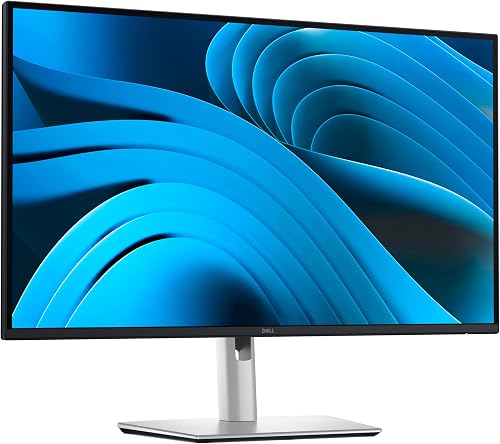
Dell Pro 27 Plus P2725DE

The best choice for most Windows laptops: a single USB-C cable carries the QHD picture, up to 90 W of charging, the USB hub and wired networking via the built-in RJ45 port. The 100 Hz IPS panel makes office work smoother than a regular 60 Hz monitor.

Pros
  • USB-C with DisplayPort Alt Mode and up to 90 W charging
  • Built-in RJ45 port + USB hub (3 USB-A and 1 USB-C downstream)
  • DisplayPort MST output to daisy-chain a second monitor on Windows
  • Fully adjustable stand: height, tilt, swivel and pivot
Cons
  • QHD at 27 inches: less sharp than a 4K monitor on a Mac
  • 100 Hz: fine for work, too limited for demanding gamers
  • No built-in KVM
FranceCheck the price in my country
Dell Pro P2726DEV (with webcam)

The remote-work version of the P2725DE: the same one-cable-for-everything idea, with a 5 MP webcam built into the top of the screen. Handy if you work with your laptop lid closed and take one video call after another.

Pros
  • 5 MP webcam (Sony Starvis sensor) in QHD, HDR, Windows Hello compatible
  • AI auto-framing for video calls
  • Upstream USB-C with up to 90 W charging, front USB-C port (15 W)
  • 100 Hz QHD IPS panel
Cons
  • More expensive than a monitor without a webcam and the same panel
  • Webcam is pointless if your laptop stays open next to the monitor
  • QHD at 27 inches: not ideal for a Mac
FranceCheck the price in my country
MSI Modern MD272QXP

The most sensible entry point: a 27-inch QHD 100 Hz monitor with 65 W USB-C and a KVM, so you can run an ultrabook and a desktop PC from the same keyboard and mouse. The hub, however, is basic.

Pros
  • USB-C with DisplayPort Alt Mode and up to 65 W charging
  • Built-in KVM to control two computers with one keyboard and one mouse
  • 100 Hz QHD IPS panel, height-adjustable stand with pivot
  • Built-in speakers
Cons
  • 65 W: too little for a MacBook Pro or a powerful laptop
  • USB 2.0 hub only, no RJ45
  • External power brick
FranceCheck the price in my country
ASUS ProArt PA278CV

The pick for creators on a tight budget: a factory-calibrated 27-inch QHD monitor (Calman Verified, Delta E < 2), 100% sRGB and Rec. 709, with 65 W USB-C for an ultrabook or a MacBook Air. A real photo-editing monitor, not just an office screen.

Pros
  • Factory calibrated: 100% sRGB and Rec. 709, Delta E < 2
  • USB-C with DisplayPort Alt Mode and up to 65 W charging
  • DisplayPort output to daisy-chain several monitors
  • Very adjustable stand (150 mm height range, pivot)
Cons
  • 75 Hz only
  • 65 W: a MacBook Pro under heavy load slowly drains
  • No RJ45
FranceCheck the price in my country

For a MacBook: go 4K (PA279CRV, U3225QE, PD3226G)

macOS does not render text the way Windows does. It uses a HiDPI mode that doubles the pixels for a Retina look. On a 27-inch QHD monitor, text is therefore less sharp than on your MacBook’s screen. For a Mac, aim for 4K from 27 inches, and ideally 32 inches in 4K if you want lots of space.

Câble USB-C branché sur un MacBook Air Click to enlarge

Two Mac-specific pitfalls:

  • MST daisy-chaining does not work on macOS: a monitor’s DisplayPort output cannot add a second extended display on a Mac. Thunderbolt daisy-chaining on the U3225QE and PD3226G does work.
  • M1 and M2 MacBook Airs support only one external display: no point planning two monitors with these models. Newer chips support more, so check your Mac’s spec sheet.

The ASUS PA279CRV is the best entry point into 4K. The Dell U3225QE is the only one that charges a 16-inch MacBook Pro at full speed (140 W). The BenQ PD3226G is for those who also want to game in 4K at 144 Hz. To compare larger sizes, our 32-inch monitor guide explains the trade-offs.

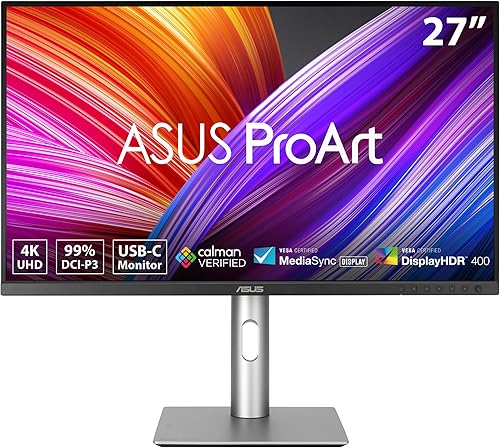
ASUS ProArt PA279CRV

The best value for a MacBook: a 27-inch 4K monitor, perfect for macOS HiDPI mode, with 96 W USB-C that is enough even for a 14-inch MacBook Pro. 99% DCI-P3 and Adobe RGB coverage plus Calman calibration make it comfortable for photo and video work.

Pros
  • 4K at 27 inches: sharp text on macOS and Windows
  • USB-C with up to 96 W charging
  • 99% DCI-P3 and 99% Adobe RGB, Delta E < 2, Calman Verified
  • DisplayPort output to daisy-chain a second monitor on PC
Cons
  • 60 Hz: less smooth scrolling than a 120 Hz monitor
  • No RJ45
  • Token HDR 400
FranceCheck the price in my country
Dell UltraSharp U3225QE

The most complete docking-station monitor in our selection: 32-inch 4K 120 Hz IPS Black (3000:1 contrast), Thunderbolt 4 with up to 140 W charging, 2.5 GbE networking and a KVM. Enough to run a 16-inch MacBook Pro or a powerful Windows laptop from a single cable.

Pros
  • Thunderbolt 4 with up to 140 W charging
  • 4K 120 Hz IPS Black panel, 3000:1 contrast, DisplayHDR 600
  • 2.5 GbE RJ45 port, built-in KVM, ambient light sensor
  • Downstream Thunderbolt port to daisy-chain a second monitor
Cons
  • The most expensive in our selection
  • 120 Hz: very comfortable, but not a competitive gaming monitor
  • 32 inches: you need a deep desk
FranceCheck the price in my country
BenQ PD3226G

The monitor for creators who also game: 32-inch 4K at 144 Hz, Thunderbolt 4 with up to 90 W charging and a built-in KVM. M-Book mode matches its colours to a MacBook screen, and the Nano Matte panel greatly reduces reflections.

Pros
  • 4K 144 Hz: smooth for work and for gaming
  • Thunderbolt 4 (40 Gbps) with up to 90 W charging, daisy-chains two 4K monitors
  • 95% P3, 100% sRGB and Rec. 709, Delta E ≤ 2
  • Built-in KVM and wireless puck to switch settings
Cons
  • 90 W: a 16-inch MacBook Pro charges more slowly than with its own charger
  • No RJ45
  • Priced close to high-end models
FranceCheck the price in my country

For a gaming laptop or handheld gaming PC: a gaming monitor with 90 W USB-C

This is what Mac-focused guides forget. Plugging a ROG Xbox Ally X, Legion Go S or Steam Deck into a USB-C monitor turns the handheld into a living-room PC with a single cable: picture, charging, and even a controller or keyboard plugged into the monitor’s hub. The same goes for a gaming laptop that stays on your desk.

The catch: most gaming monitors have no USB-C, or a USB-C port that barely charges. The MSI MPG 271QRX QD-OLED is an exception, with 90 W and a KVM that lets you switch from your desktop PC to your laptop without unplugging the keyboard or mouse. Its 360 Hz is overkill for a handheld, but not for a high-end gaming laptop.

  • On a gaming laptop, the USB-C port is wired, depending on the model, to the integrated graphics or to the graphics card: check the spec sheet to see the maximum refresh rate available over USB-C.
  • In games, a gaming laptop draws far more than 90 W: keep its original charger plugged in.
  • On an OLED monitor, avoid leaving static taskbars on screen all day, and turn on the monitor’s burn-in protection features.

To dig deeper into OLED, read our 30-month OLED burn-in test, our roundup of the best OLED gaming monitors and our 17-inch gaming laptop guide.

MSI MPG 271QRX QD-OLED

The gaming option in our selection, and a rarity: a 360 Hz QHD QD-OLED monitor with a real USB-C port that carries video and charges at up to 90 W, plus a KVM. Ideal for plugging in a handheld gaming PC or a gaming laptop next to a desktop PC.

Pros
  • QHD QD-OLED at 360 Hz, 0.03 ms: top-tier responsiveness and contrast
  • USB-C with DisplayPort Alt Mode and up to 90 W charging
  • Built-in KVM to switch from desktop PC to laptop
  • HDMI 2.1 and DisplayPort 1.4a for the rest of your setup
Cons
  • OLED: burn-in risk with static taskbars all day
  • 26.5 inches in QHD: less workspace than 4K
  • 90 W does not replace a gaming laptop’s charger in games
FranceCheck the price in my country

Ultrawide: a 34-inch USB-C monitor to replace two screens

A 34-inch 3440 x 1440 ultrawide gives you roughly the area of two 24-inch monitors, without a bezel in the middle. With 90 W USB-C and RJ45, the Dell P3424WE becomes a complete workstation on a single cable. Its 60 Hz makes it a work monitor: for ultrawide gaming, see our guide to the best 34-inch ultrawide monitor.

Dell P3424WE

To replace two monitors with one: a curved 34-inch ultrawide (3440 x 1440) with 90 W USB-C and RJ45. Very comfortable for spreadsheets, coding or editing, with a single cable to your laptop.

Pros
  • 34-inch 21:9 at 3440 x 1440, 3800R curved IPS panel
  • USB-C with up to 90 W charging
  • RJ45 port and USB hub (5 ports)
  • 99% sRGB
Cons
  • 60 Hz only
  • Large and deep: you need desk space
  • Less sharp than 4K for a Mac
FranceCheck the price in my country

Desktop PC + laptop setup: how to use the KVM

If you have a desktop PC for gaming and a laptop for work, a monitor with a KVM saves you from having two keyboards on your desk. The MSI MD272QXP, BenQ PD3226G, Dell U3225QE and MSI MPG 271QRX have one. Here is how to set it up:

  1. Connect the desktop PC to the monitor over DisplayPort or HDMI, and link it to the monitor’s upstream USB port (USB-B or USB-C cable supplied).
  2. Connect the laptop with a single USB-C cable: it gets the picture, charging and the USB hub.
  3. Plug the keyboard and mouse into the monitor’s USB ports, not into the computers.
  4. Pair each video input with its USB port in the monitor’s menu: when you switch source, the keyboard and mouse follow automatically.

Cables, Thunderbolt, MST: pitfalls to avoid

  • The cable matters: above 60 W, you need a USB-C cable certified for 100 W (5 A). For 140 W, you need a 240 W cable. Ideally, use the one supplied with the monitor.
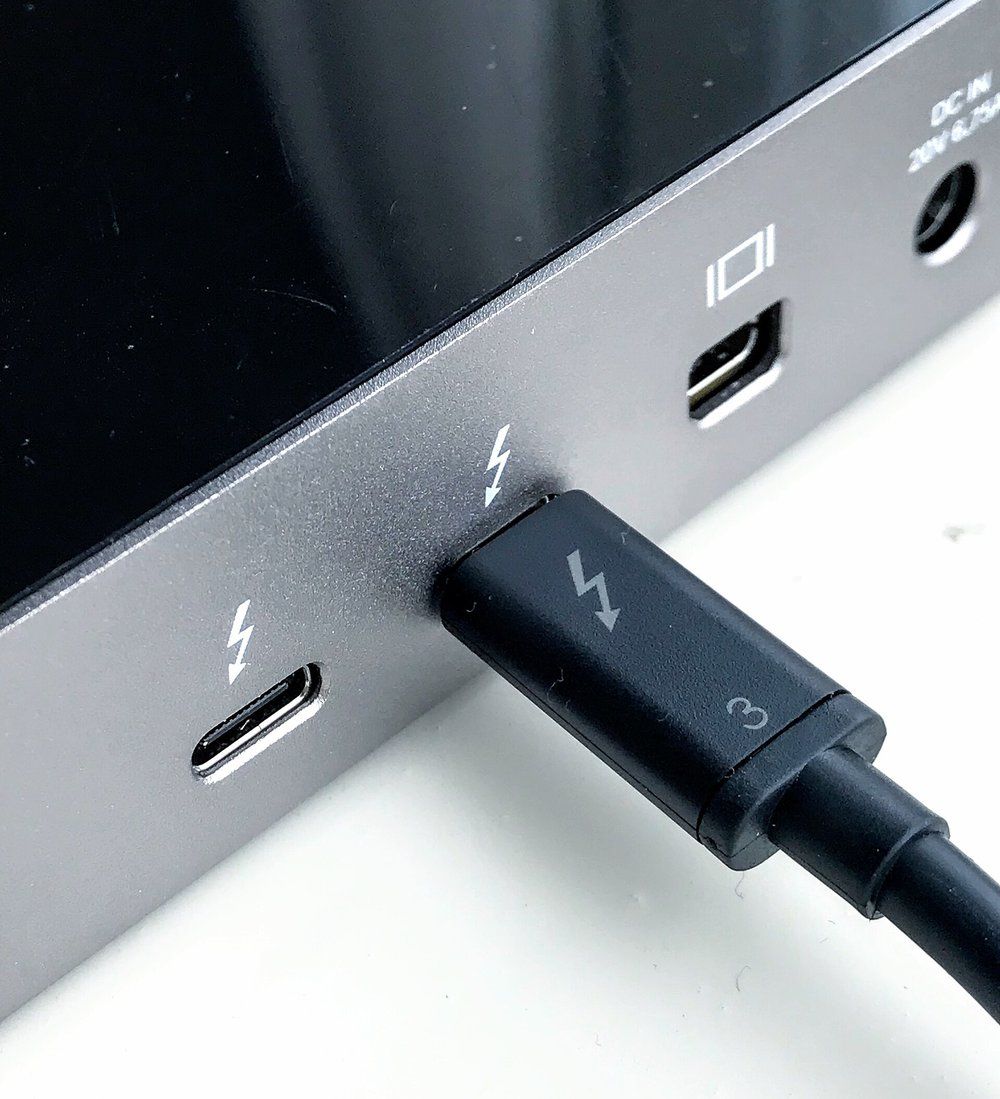
  • Thunderbolt or plain USB-C: a Thunderbolt 4 monitor offers more bandwidth (40 Gbps) for the hub and daisy-chaining. It also works with a regular USB-C port, but with fewer features.
  • Your laptop’s port: without a DP or Thunderbolt logo, your USB-C port may only carry data. In that case, use HDMI.
  • Length: a USB-C cable that is too long often loses video bandwidth. Stick to 1 to 2 metres.
Câble Thunderbolt branché sur une station d’accueil Thunderbolt Click to enlarge

Budget: how the USB-C monitor segments compare

Monitor prices change a lot from week to week, so we compare the segments without amounts, from the most affordable to the most expensive. The current price of each model is shown in its product box.

Segment Price level Models in this guide
27-inch QHD USB-C (65 to 90 W) Most affordable P2725DE, P2726DEV, MD272QXP, PA278CV
27-inch 4K USB-C for Mac Mid-range PA279CRV
32-inch 4K Thunderbolt 4 Most expensive U3225QE, PD3226G
QD-OLED gaming with 90 W USB-C Upper mid-range MPG 271QRX QD-OLED
34-inch USB-C ultrawide Mid-range P3424WE
Swipe to view more

FAQ: USB-C monitors, Thunderbolt and charging

Can a USB-C monitor charge any laptop?

Only if the laptop supports USB-C charging (USB Power Delivery). Most ultrabooks and all recent MacBooks do. Many gaming laptops also charge over USB-C, but with limited power: in games, their original charger is still needed.

What is the difference between a USB-C monitor and a Thunderbolt monitor?

The connector is the same. A Thunderbolt 4 monitor offers more bandwidth (40 Gbps), Thunderbolt daisy-chaining that also works on a Mac, and often more charging power. It remains compatible with a regular USB-C port that outputs video.

65 W or 90 W: which power should you choose?

65 W is enough for an ultrabook, a MacBook Air or a handheld gaming PC. Aim for 90 to 100 W for a 14-inch MacBook Pro or a 15-16-inch laptop, and 140 W to charge a 16-inch MacBook Pro at full speed.

Can you connect a handheld gaming PC to a USB-C monitor?

Yes. The ROG Xbox Ally X, Legion Go S and Steam Deck output video over USB-C. A USB-C monitor charges them at the same time, and you can plug a controller or keyboard into its hub.

Is a QHD monitor suitable for a MacBook?

It works, but text is less sharp than on the MacBook’s screen because of macOS scaling. For a Mac, a 27-inch 4K monitor such as the ASUS PA279CRV is a much better choice.

Conclusion: choose based on your device and how much power it needs
For a Windows laptop, the Dell P2725DE ticks every box with 90 W and an RJ45 port. For a MacBook, go 4K: the ASUS PA279CRV for a 27-inch, the Dell U3225QE for a 16-inch MacBook Pro, the BenQ PD3226G if you also game. For a gaming laptop or handheld gaming PC, the MSI MPG 271QRX QD-OLED is one of the few gaming monitors that charges over USB-C. Either way, check the DP or Thunderbolt logo on your USB-C port and the charging power your device needs before you buy.