yuux
Co-founder of DropReference, I'm here to give you the best tips to build the gaming PC of your dreams!
yuux
Co-founder of DropReference, I'm here to give you the best tips to build the gaming PC of your dreams!
- 1The short answer: clean up, compress a little, then add an SSD
- 2What Linus Tech Tips shows: a Windows folder compressed with WinRAR
- 3Why compression barely saves anything in 2026
- 4Compact OS: compress Windows the right way, step by step
- 5Freeing up space on the C drive with the Windows tools
- 6The table: which fix for how much space?
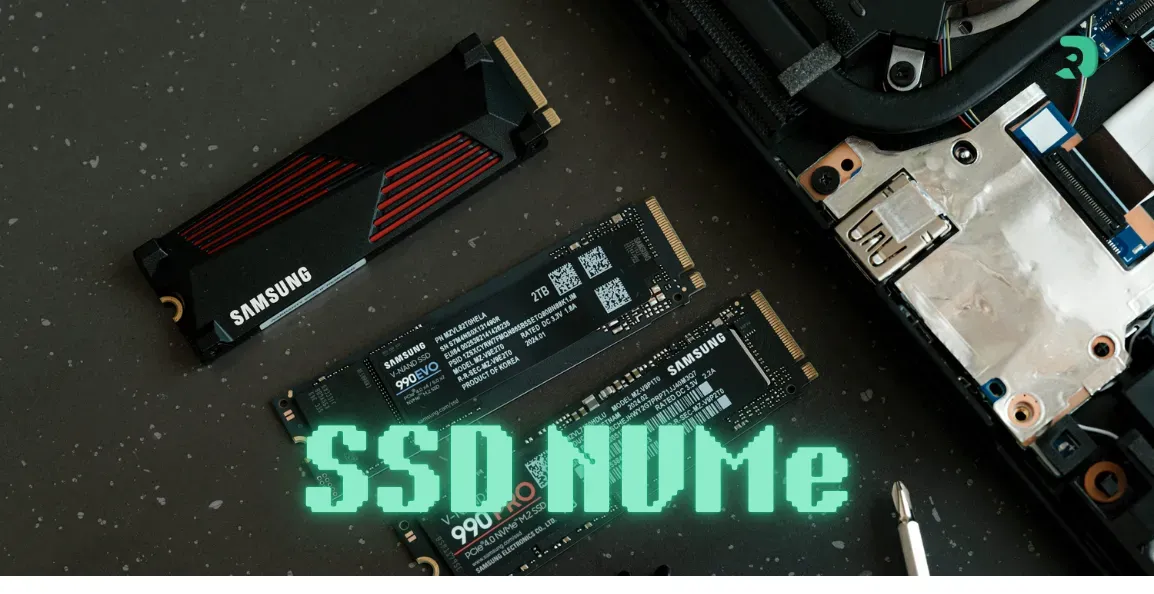
- 7When to add an SSD instead of compressing
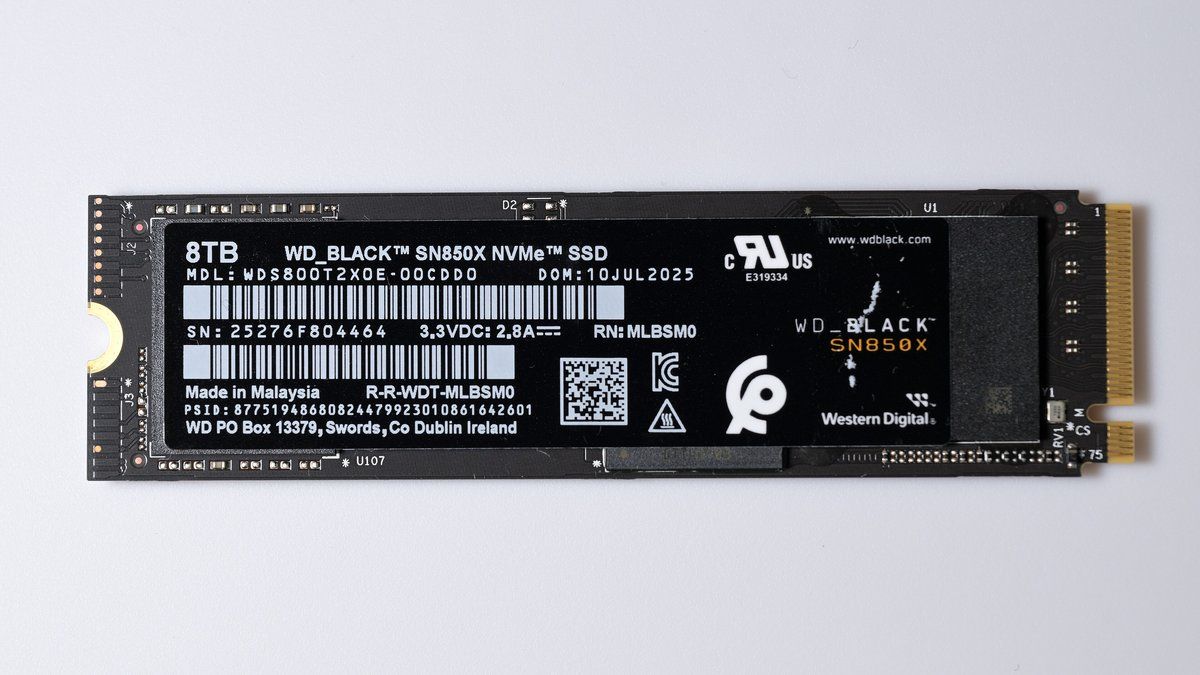
- 8Which NVMe SSD to add: our 1 and 2 TB picks
- 9On a tight budget: Kingston NV3
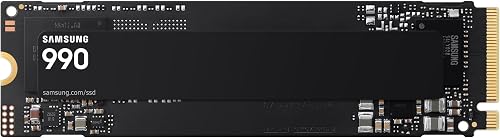
- 10For a laptop: Samsung 990 or Crucial P310
- 11Never run out of space again: WD Green SN3000 2 TB
- 12The 5 SSDs compared
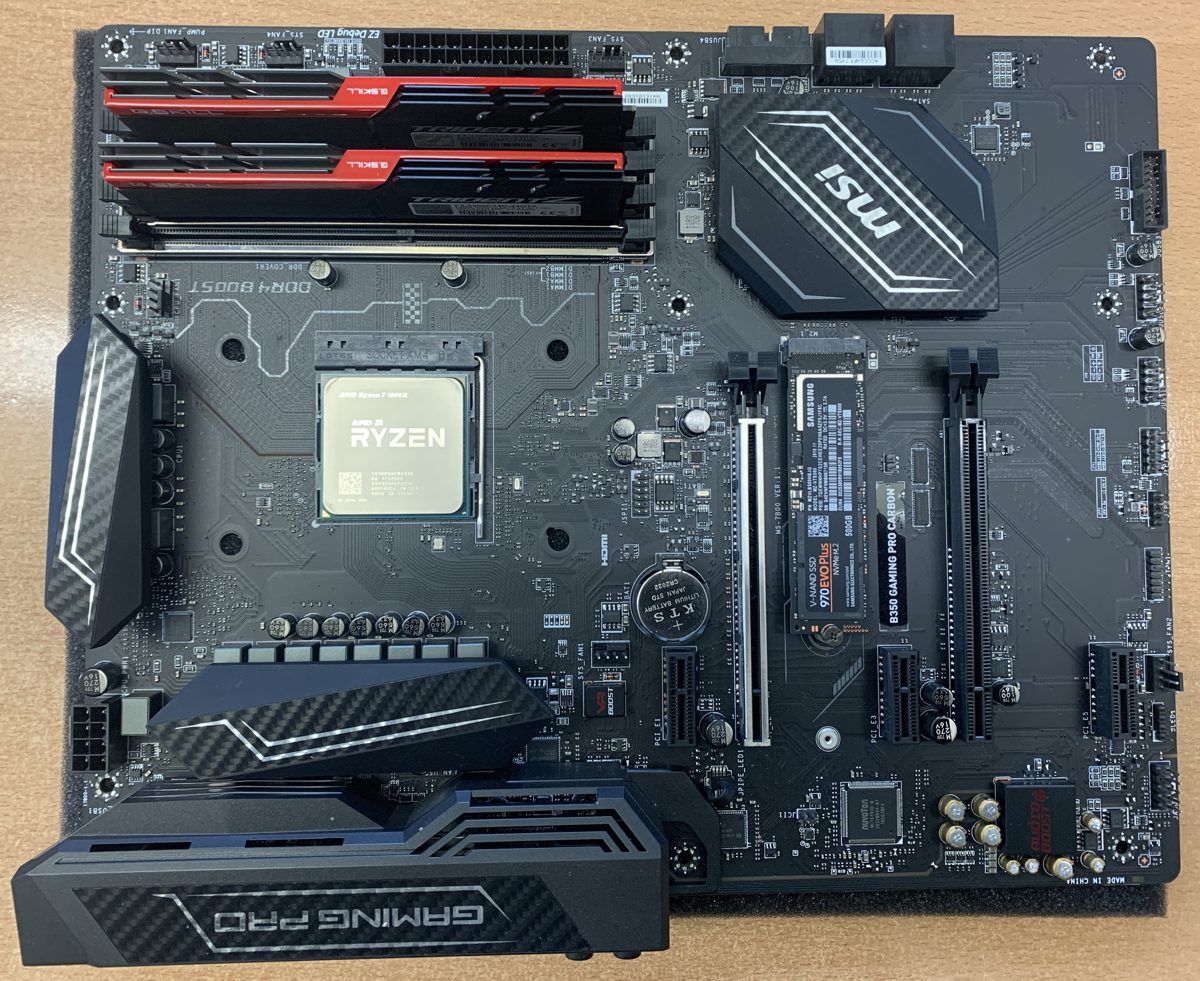
- 13Installing an M.2 SSD to take the load off the C drive
- 14FAQ: full C drive, Compact OS and SSD
- 15Conclusion: compression is a stopgap, an SSD fixes the problem