Windrose: how to optimize its performance and gain FPS in 2026

Optimize windrose windrose fps boost windrose performance 2026

Windrose struggling? We'll explain how to scratch 30 to 50% more FPS with the right Windows settings, in-game settings, and some NVIDIA/AMD tweaks.

Windrose rowing? Normal, here's why

Windrose turns on Unreal Engine 5 . And like all UE5 games released in early access, the first few hours of gameplay are often a nightmare in terms of performance. Shader compilation stutters, FPS drops in dense areas, freezes when the game loads new textures for streaming - the classic cocktail.

But good news: with the right settings, we can recover between 30 and 50% more FPS without the game looking like a pixel porridge. We'll see that in order: first Windows, then in-game settings, then NVIDIA/AMD driver tweaks, and finally an Engine.ini mod that does the job.

Small disclaimer before we start: shader compilation stutters are normal in the first 20-30 minutes of the game. It's UE5 compiling shaders on the fly. It calms down on its own afterwards. No need to panic.

Step 1: optimize Windows before touching the game

Before even opening Windrose, there are a few Windows settings that make a real difference. Nothing crazy, it takes 5 minutes.

Disable transparency effects

Settings > Customization > Colors > Transparency effects: disable It's cosmetic, it eats up GPU resources for nothing. Minimal but free gain.

Cut the Xbox Game Bar

Settings > Games > Xbox Game Bar > Disable It is an overlay that runs constantly and consumes CPU and RAM. If you do not use Game DVR to record your clips, get rid of it.

Activate Game Mode

Settings > Games > Game Mode > Activate Contrary to what is read on some forums, Windows 11's Game Mode does its job: it reduces background processes when a game is launched. No reason to disable it.

Hardware-Accelerated GPU Scheduling

Settings > System > Display > Graphics > Advanced graphic settings . Activate the Hardware-accelerated GPU scheduling and the Optimizations for windowed games . The first allows the GPU to manage its own task queue — less latency. The second reduces lag in borderless window mode.

Force the high-performance GPU for Windrose

Still in Settings > Graphics, manually add the Windrose executable. Go to your Steam folder (right-click > Manage > Browse local files), navigate to R5/Binaries/Win64/ and copy the path. Add it as a desktop application and select High performance It is especially useful on laptops with integrated + dedicated GPU, but it doesn't hurt on desktops either.

Block background apps

This one is the most efficient and nobody talks about it. Open gpedit.msc (enter "Edit group policy" in the search). Go to Computer Configuration > Administrative Templates > Windows Components > App Privacy. Find " Allow Windows apps to run in the background ", activate the strategy and set the default parameter to Refuse by force It blocks all UWP apps in the background. You get CPU and RAM back for the game.

Windows Updates

It may seem basic, but make sure you are up to date. Microsoft regularly releases patches that fix performance issues with recent games. The same goes for GPU drivers — we'll come back to that later.

Windows Settings Where to Find Action
Transparency effects Customization > Colors Disable
Xbox Game Bar Games > Xbox Game Bar Disable
Game Mode Games > Game Mode Enable
GPU Scheduling Graphics > Advanced settings Enable
Windowed games optimizations Graphics > Advanced settings Enable
High-performance GPU Graphics > Add app Windrose Win64 Shipping
Background apps gpedit.msc > App privacy Forcefully refuse
Mise à jour de Windows Update and security Install all
Swipe to view more

Step 2: compatibility and DPI

Something that many guides forget. Go to the Windrose folder ( R5/Binaries/Win64/ ), right-click on the executable > Properties > Compatibility > Change the high DPI settings .

Tick "Replace the behavior of high PPP scaling" and leave "Application" in the dropdown menu. It reduces input lag — especially visible in combat, and especially if you play in DX12 (which is Windrose's default).

On the other hand, if you play in DX11 via the Steam launch options, you can also check "Disable fullscreen optimizations". In DX12 it's not necessary.

Step 3: in-game graphic settings

This is where it really happens. Windrose has a lot of graphic options and some consume a lot of FPS for an almost invisible visual gain. We will detail each tab of the video menu.

Upscaling and Frame Generation

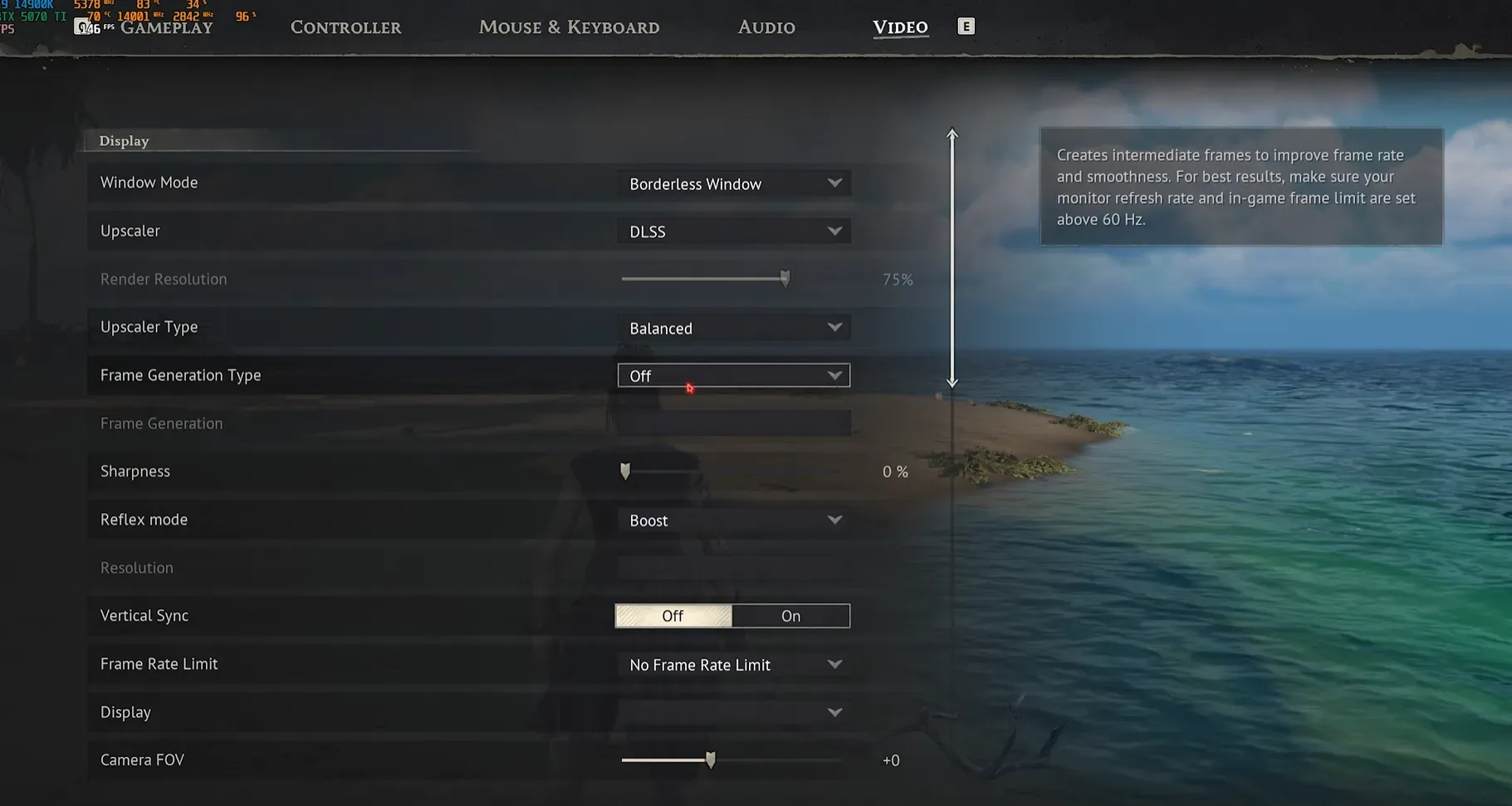
First reflex: the upscaler. If you have an NVIDIA card, put DLSS in Balanced mode (or Performance if your config is struggling). On AMD, FSR in Balanced/Performance also. And if you have neither, the integrated TSR at 70-75% resolution does the job.

Frame Generation: disable it. Seriously. On paper it doubles the FPS, but in practice it's full of micro-stutters in Windrose. Several players on Steam have confirmed that turning off Frame Gen solves most of their fluidity issues. The counter may display 120 FPS, but the feeling is more like 40.

Frame Generation désactivé dans les options vidéo de Windrose Click to enlarge

NVIDIA Reflex and VSync

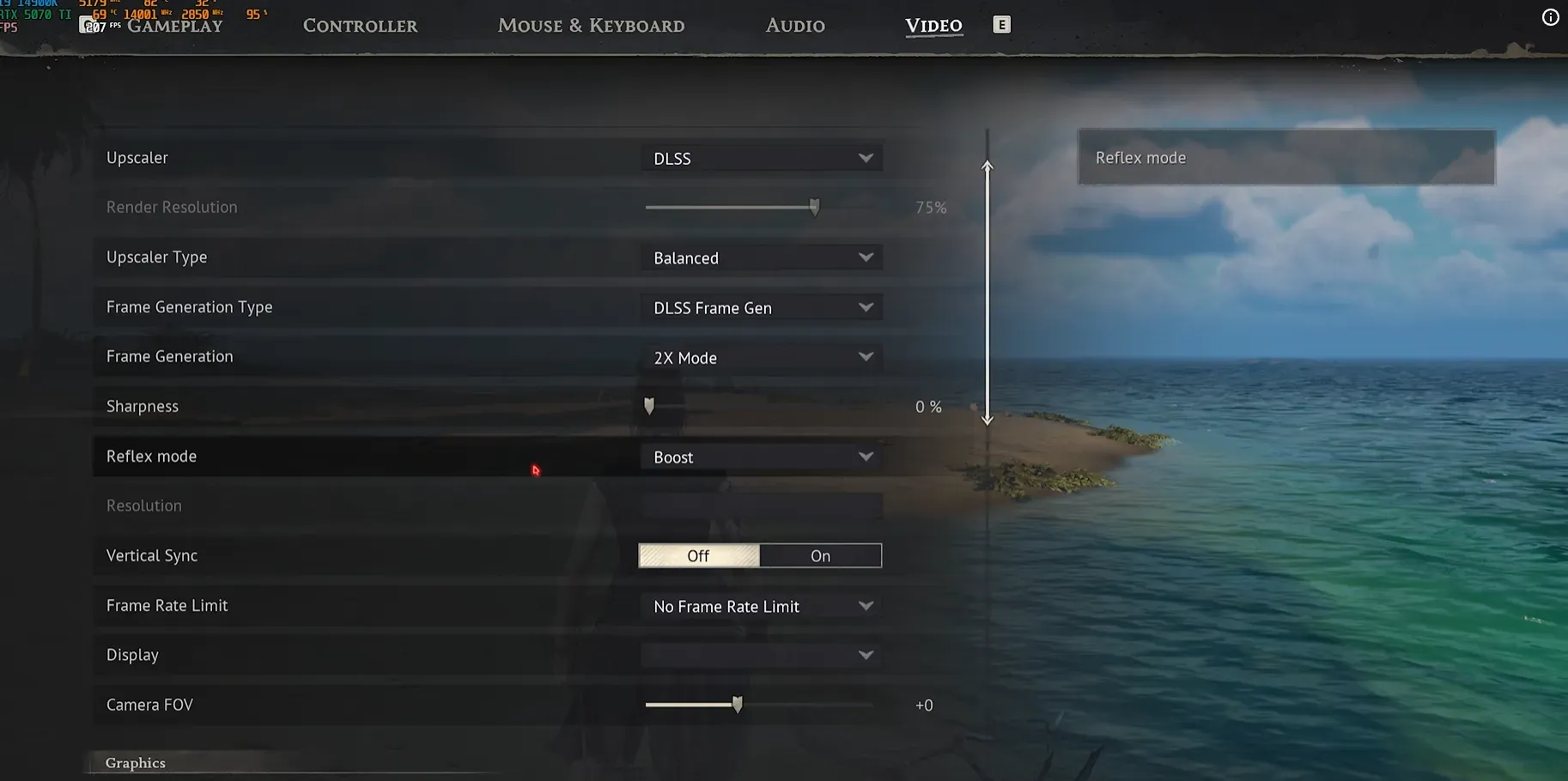
If you have an NVIDIA card, Windrose supports NVIDIA Reflex natively. Put it on Boost if your setup can handle it (RTX 3070+), otherwise leave it on Enabled. It reduces the latency between your click and what happens on the screen - in combat, you feel the difference.

VSync: disabled If you have a G-Sync or FreeSync screen, it is the one that manages the synchronization. VSync adds input lag and can unnecessarily cap your FPS. For the frame rate limit, set it to unlimited if your config holds, otherwise cap at 60.

NVIDIA Reflex réglé sur Boost dans les paramètres vidéo de Windrose Click to enlarge

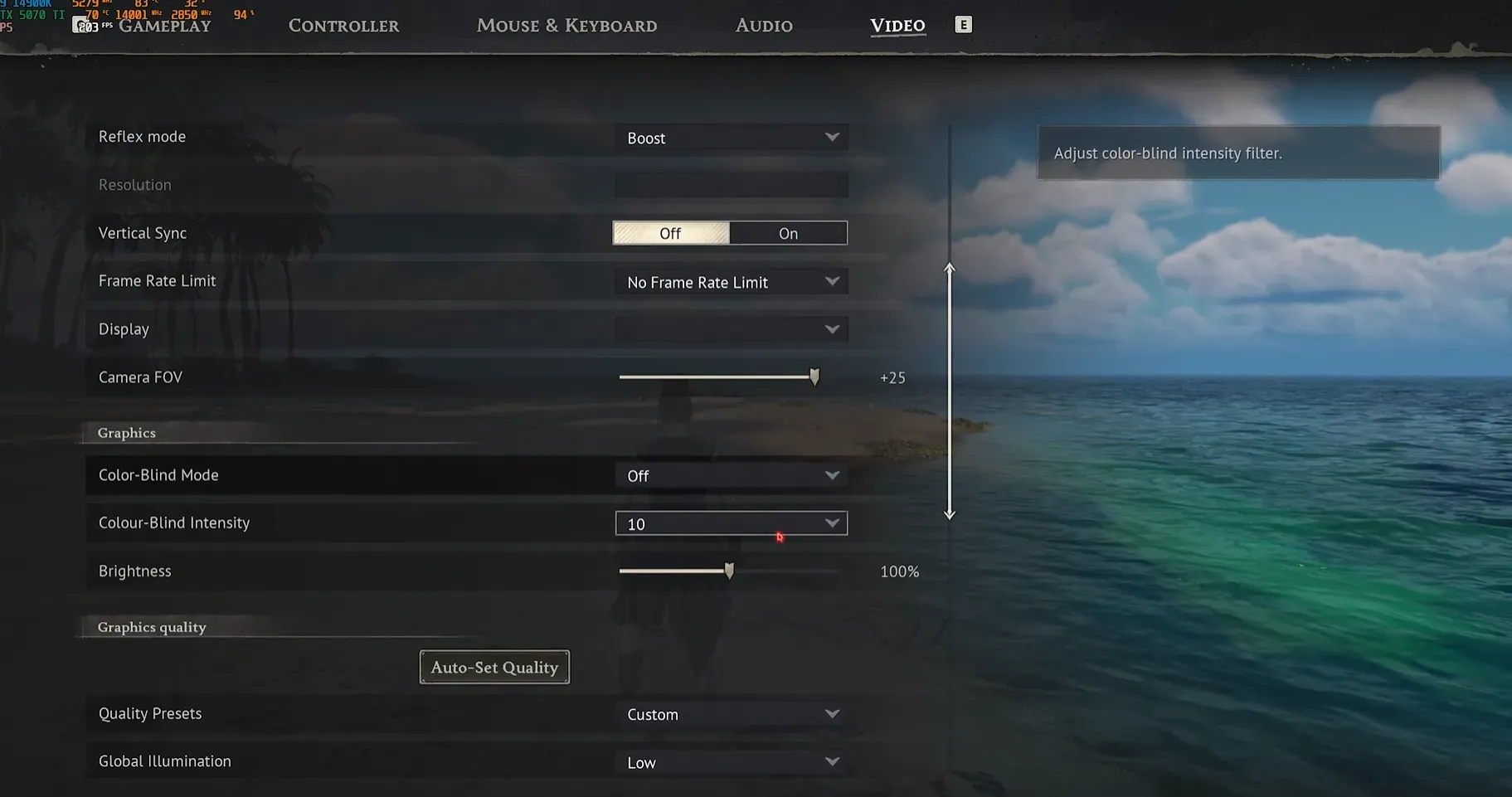
Camera FOV: mount it

An adjustment that many players ignore: the Camera FOV . By default, it is quite tight. Raise it by +20 to +25 to have a better field of vision. You will see more of your environment, which is a real advantage in combat and exploration. The impact on FPS is negligible.

FOV caméra augmenté de 25 dans les paramètres de Windrose Click to enlarge

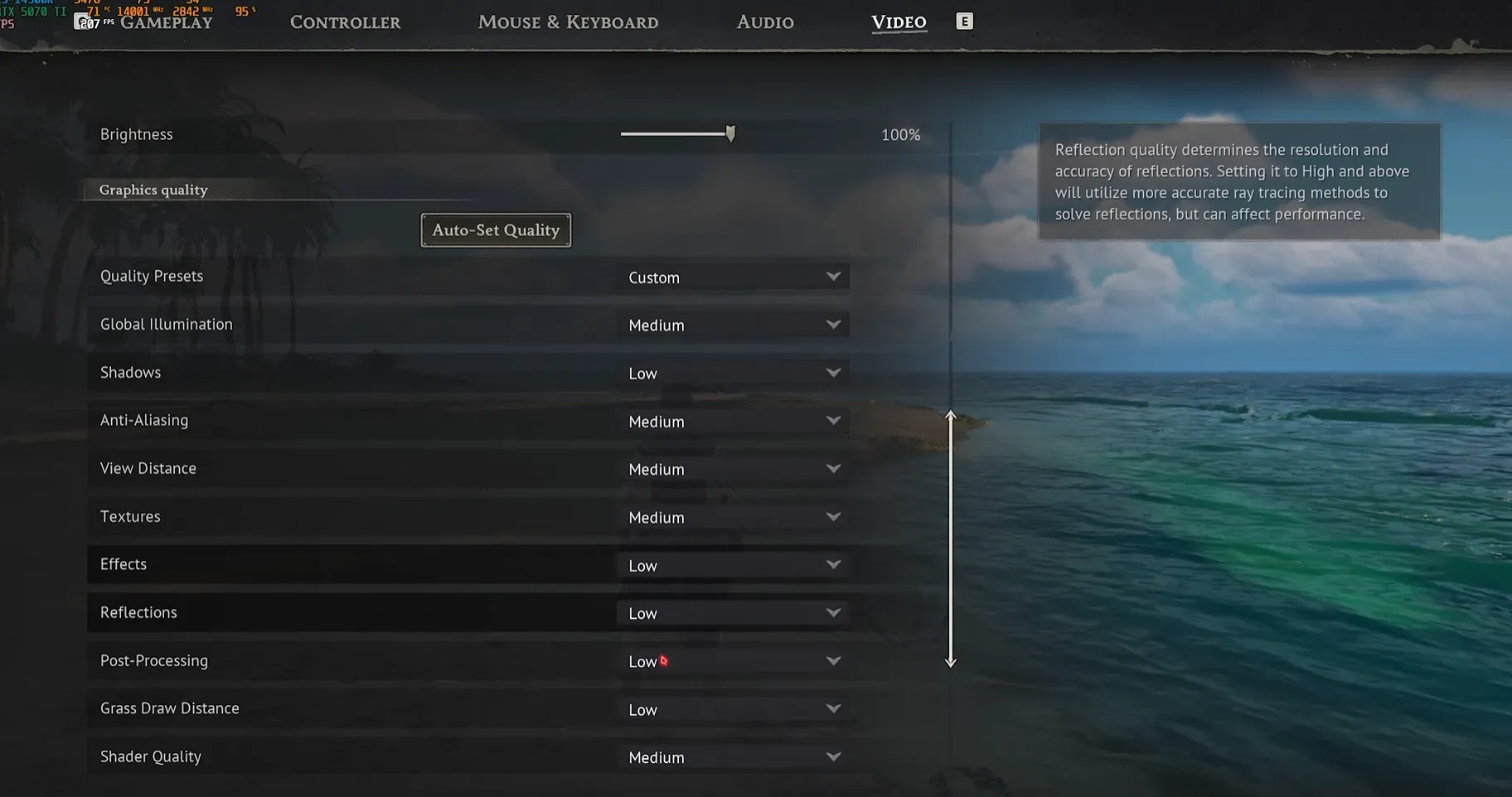
Graphic quality: the settings that matter

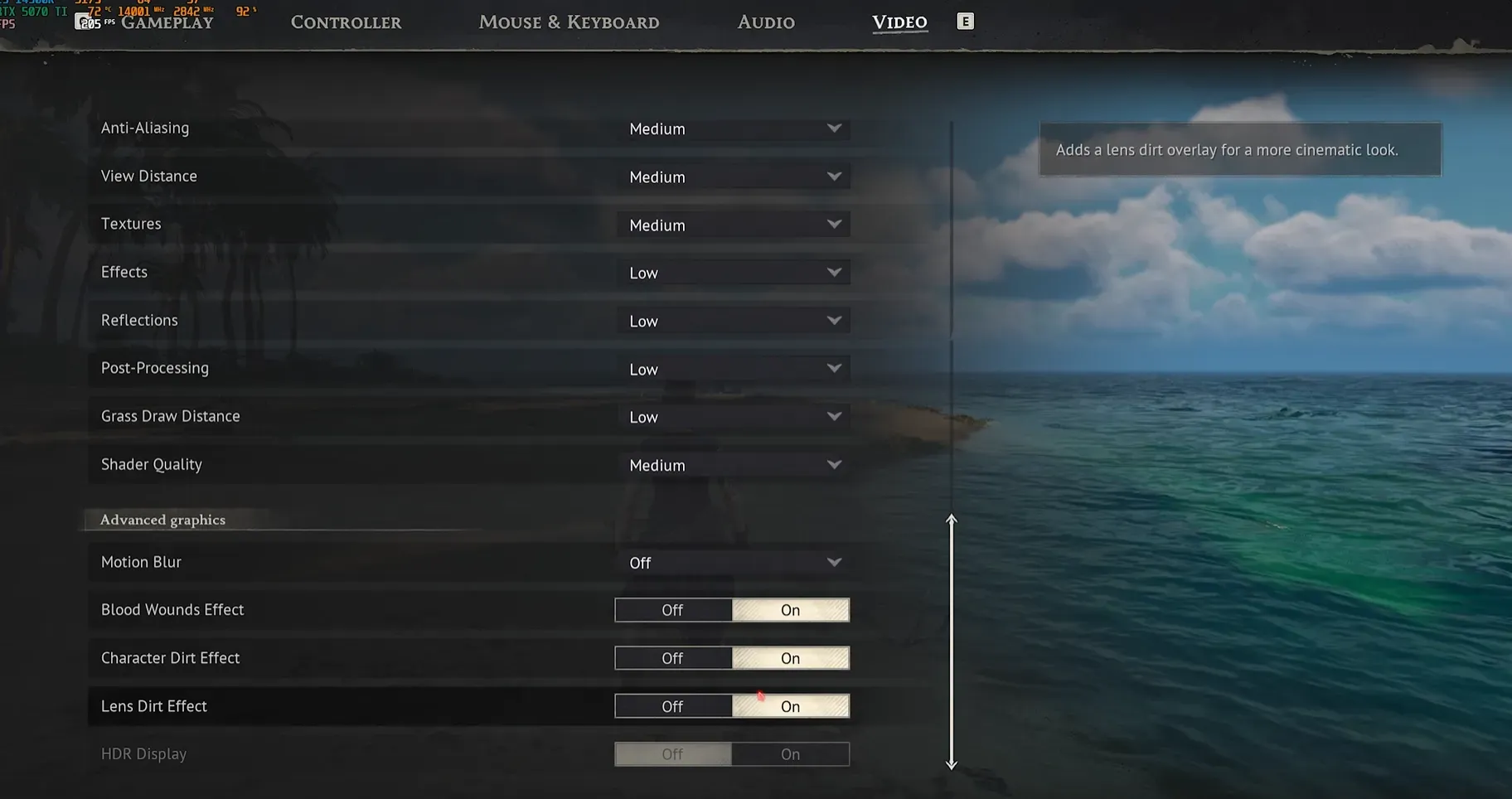
Shader Quality — it is the most impactful setting in the menu. Changing it from High/Epic to Medium (even Low on small configs), it's easily 15-20% more FPS. And visually? Almost invisible in-game.

Global illumination, Shadows — both of them Low . Global illumination is a huge GPU expense for a subtle effect. Shadows on Low remain perfectly legible.

Anti-Aliasing, Display Distance — both in Medium . It's the ideal compromise. In Low the image is too pixelated, in High the visual gain doesn't justify the cost.

Textures — there it's different because it depends on your VRAM. If you have 8GB or more (RTX 4070+), you can keep it on High or even Epic without impacting FPS — textures consume VRAM, not computing power. With 4-6GB, Medium at most. Below that, Low.

Effects, Grass Draw Distance — the two in Low . The effects (particles, explosions) weigh down the FPS in combat. And for the grass, in Low it pops a little close but the gain is worth it.

Réglages de qualité graphique recommandés dans Windrose Click to enlarge

Advanced settings: final cleanup

Motion Blur: disabled Motion blur is a personal preference but it eats up FPS for an effect that 90% of players turn off anyway.

The remaining effects — Blood Wounds, Character Effects, Lens Dirt — it's pure cosmetics. You can leave them enabled or disabled, the impact on FPS is almost zero. Lens Dirt is a photo filter that adds dirt to the screen, I personally turn it off because it hinders readability.

Paramètres graphiques avancés de Windrose : motion blur et effets visuels Click to enlarge
Parameter Recommended Impact FPS
Upscaler (DLSS/FSR/TSR) Performance Very high (+30-40%)
Frame Generation Disabled High (reduced stutters)
Shader Quality Low Very high (+15-20%)
Effects Low High
Reflections Low High
Post-Processing Low Medium to high
Textures According to VRAM (see table) Low (VRAM only)
Overall lighting Medium Average
Shadows Faible/Moyen Average
Anti-Aliasing Medium Low
Display distance Medium Average
Grass distance Medium Average
VSync Disabled Reduced input lag
Motion Blur Disabled Low
Salissures sur l'objectif / Effets sur les caractères Disabled Low
FPS Cap 60 (or 90/120 if config OK) Stabilizes the framerate
Swipe to view more
GPU VRAM Recommended Textures Examples of GPUs
12 GB+ Epic RTX 4080, RTX 5070, RX 9070 XT
8-10 GB Élevé RTX 4070, RTX 3070, RX 7800 XT
4-6 GB Medium RTX 3060 6GB, RX 6600, RTX 4060
Less than 4 GB Low GTX 1650, RX 580 4 GB
Swipe to view more

Step 4: NVIDIA and AMD tweaks

On the NVIDIA side (control panel)

Open the NVIDIA Control Panel, go to Manage 3D Settings, and create a profile for Windrose. Here are the important settings:

  • Shader Cache — pass it to 10 GB minimum (100 GB if you have space on your SSD). The default 5 GB cache is too small for UE5 games. A larger cache = fewer shader recompilation stutters.
  • Energy management mode "Maximal performances" to prevent the GPU from throttling during gaming.
  • Low latency mode — Enabled (or Ultra if you want the minimum input lag).
  • NVIDIA Reflex — Windrose supports it natively. Enable it in the in-game options to reduce latency.

And above all: update your drivers NVIDIA releases Game Ready drivers for big launches and Windrose got one. It's not just cosmetic, it can be worth 5-10% FPS.

On the AMD side (Radeon Software)

In Radeon Software, create a game profile for Windrose:

  • Radeon Anti-Lag — Activated. This is AMD's equivalent of NVIDIA Reflex, it reduces input lag.
  • Radeon Boost — can help if you're struggling with FPS, but it lowers the resolution dynamically. To be tested according to your preferences.
  • Tessellation — force in "AMD Optimized" for a small free gain.

Same old story: up-to-date drivers. AMD has also pushed specific optimizations for Windrose in its latest Adrenalin drivers.

Kingston FURY Beast 32GB DDR5 6000MT/s CL30

32GB of fast DDR5 for uncompromising gaming. The best-selling DDR5 6000 CL30 kit in 2026, compatible with Intel and AMD.

Pros
  • 6000 MT/s CL30 native, no overclocking required
  • Compatible with EXPO and XMP 3.0
  • 32 GB is sufficient for Windrose and multitasking.
Cons
  • No RGB if you want bling.
  • Available in a 64GB version for more margin
FranceCheck the price in my country

Step 5: the Engine.ini mod (Definitive Engine Tweaks)

That one is the bonus that makes the difference. On Nexus Mods, there is a mod called Definitive Engine Tweaks — it is a modified Engine.ini file that optimizes the UE5 engine without affecting the game's visuals.

Concretely, it tweaks the frametimes values, texture streaming, shadow distance, and disables some invisible post-processing effects (film grain, subtle depth of field). Result: fewer stutters, better streaming, and reduced latency.

Installation:

  1. Download the mod on Nexus Mods (search for "Definitive Engine Tweaks" for Windrose)
  2. Backup your folder R5/Saved/SaveProfiles/ in case
  3. Replace the Engine.ini file (or merge it if you already have custom tweaks)
  4. Launch the game and test

The mod is compatible with single player mode and with other .pak mods. However, Windrose has a limit of mods due to UE5 texture streaming - if you use a lot of them, you may need to merge your files.

It's risk-free on the anti-cheat side since Windrose is PvE, and the mod only alters engine values, not gameplay.

Step 6: Disable SysMain and clean the shader cache

Two quick manipulations that can unlock the situation if you have persistent jerks.

Disable SysMain (formerly Prefetch)

SysMain is a Windows service that preloads data into RAM to speed up the launch of applications. The problem? In games, it can consume up to 15-20% of CPU in the background for nothing. Especially if you have 16 GB of RAM or less.

To cut it: type services.msc in the Windows search, find SysMain in the list (press S to go faster), double-click on it, set the startup type to Disabled , click on Stop if the service is running, then Apply. Done.

If you ever notice that your apps take longer to open on a daily basis, you can always reactivate it. But for gaming, we can do without it very well.

Clean the DirectX shader cache

Corrupted shaders in the Windows cache can cause black screens, crashes, or unexplained FPS drops. The fix is simple: type Disk Cleanup In the search, select your C drive, and check these two options:

  • DirectX shader cache
  • Distribution optimization files

Click on OK then Delete files. At the next launch of Windrose, the game will recompile its shaders — expect stutters for 10-15 minutes, it's normal, after that it's clean.

Create a restore point before touching the system

A piece of advice before doing all these manipulations: create a restore point. Type " Create a restore point "in the search, select your C drive, click on Create, give it a name like "Before optim Windrose". If a setting messes things up, you can restore everything in 2 minutes."

Steam Launch Options

In Steam, right-click on Windrose > Properties > Launch Options. Some useful commands:

  • -dx12 — force DirectX 12 (normally by default, but it can fix crashes at launch)
  • -dx11 — force DX11 if you are experiencing stability issues in DX12. Less efficient but more stable on certain older configurations.
  • - USEALLAVAILABLECORES — uses all CPU cores. Can help on processors with many cores.

No need to stack all these commands. Test them one by one to see what improves your situation.

Potato mode: if it really lags again

If despite all this you struggle to maintain 30 FPS, it's the nuclear mode: all in Low , resolution at 720p, upscaler in Ultra Performance, FPS cap at 30. It's ugly, but it runs. Some players with GTX 1060 manage to get 50-60 FPS in potato mode.

But honestly, if you're at this point, it might be time to look at a GPU upgrade. The RTX 4060 is available for under 280€ in 2026, and that's the comfortable minimum for UE5 games in 1080p.

FAQ

Why does Windrose stutter so much at the beginning?

This is the shader compilation of Unreal Engine 5. The game compiles shaders on the fly while you play. After 20-30 minutes in an area, it stabilizes. It's normal and affects everyone, even the RTX 4090.

DLSS Frame Generation, should I activate it or not?

No. In the current state of the game, the Frame Gen causes more problems than it solves. The FPS counter increases but the micro-stutters make the game less smooth than without. Wait for a patch that fixes this.

What is the best display mode for Windrose?

Borderless Window (borderless window). It's smoother than exclusive fullscreen on Windows 11, and it allows you to alt-tab without the game crashing. With optimizations for windowed games enabled, there are zero drawbacks.

Is my GPU not being used at 100%, is that normal?

If your GPU is running at 60-70% and you have low FPS, it's a CPU bottleneck. UE5 games are very CPU-intensive. Make sure your drivers are up to date, close background apps, and use DLSS/FSR to reduce GPU load and let the CPU breathe.

Is the Engine.ini mod safe for multiplayer?

Windrose is a PvE game, there is no active anti-cheat. The mod only modifies engine values (streaming, post-processing, frametimes). No risk of ban.

What is the minimum configuration to play Windrose properly?

For stable 1080p 60 FPS with correct settings: a Ryzen 5 5600 or i5-12400, 16GB of DDR4/DDR5, an NVMe SSD, and at least an RTX 3060 or RX 6600 XT. Below that, you have to accept potato mode.