Which monitor for the Steam Machine in 2026? 1440p or 4K, DisplayPort or HDMI, and the screens that get the most from it

steam machine monitor best monitor for steam machine steam machine 4k 120 hz steam machine displayport or hdmi steam machine 1440p monitor steam machine living room tv

DisplayPort rather than HDMI, 1440p or 4K depending on your games: the 27-inch monitors that get the most from the Steam Machine, and the living-room TV case.

What the Steam Machine actually sends to the display

The GPU is a semi-custom RDNA 3 part with 28 compute units, 8 GB of GDDR6 and a stated 110 W TDP. On the display side, the official Valve sheet is clear: one DisplayPort 1.4 and one HDMI 2.0, both with HDR and FreeSync.

Output Stated maximum Official extras
DisplayPort 1.4 4K at 240 Hz, or 8K at 60 Hz HDR, FreeSync, daisy-chain
HDMI 2.0 4K at 120 Hz HDR, FreeSync, CEC
Swipe to view more

DisplayPort or HDMI: the cable really changes the picture

For a desk monitor, take DisplayPort. It is the output that holds the highest 4K refresh rates, in 4:4:4, without a bandwidth workaround. On a 1440p 180 Hz or a 4K 160 Hz panel, it is also often the only port on the monitor that reaches the maximum refresh rate.

Leave HDMI for the living-room TV. It has CEC, so the machine can power the television on and switch to the right input. The official sheet lists it as HDMI 2.0, up to 4K 120 Hz. Valve first reached that 4K 120 Hz figure by chroma-subsampling the color, because the HDMI Forum blocks a complete open-source HDMI 2.1 implementation in AMD’s Linux drivers. Text and UI can look a little soft. In June 2026, Valve said HDMI 2.1 VRR was already in the stack and that an FRL update would follow for uncompressed 4K 144 Hz. The official sheet is still worded as HDMI 2.0: do not count on it for a desk setup.

If your monitor only has HDMI, you will still get a picture. But as soon as both connectors are there, DisplayPort is the default choice.

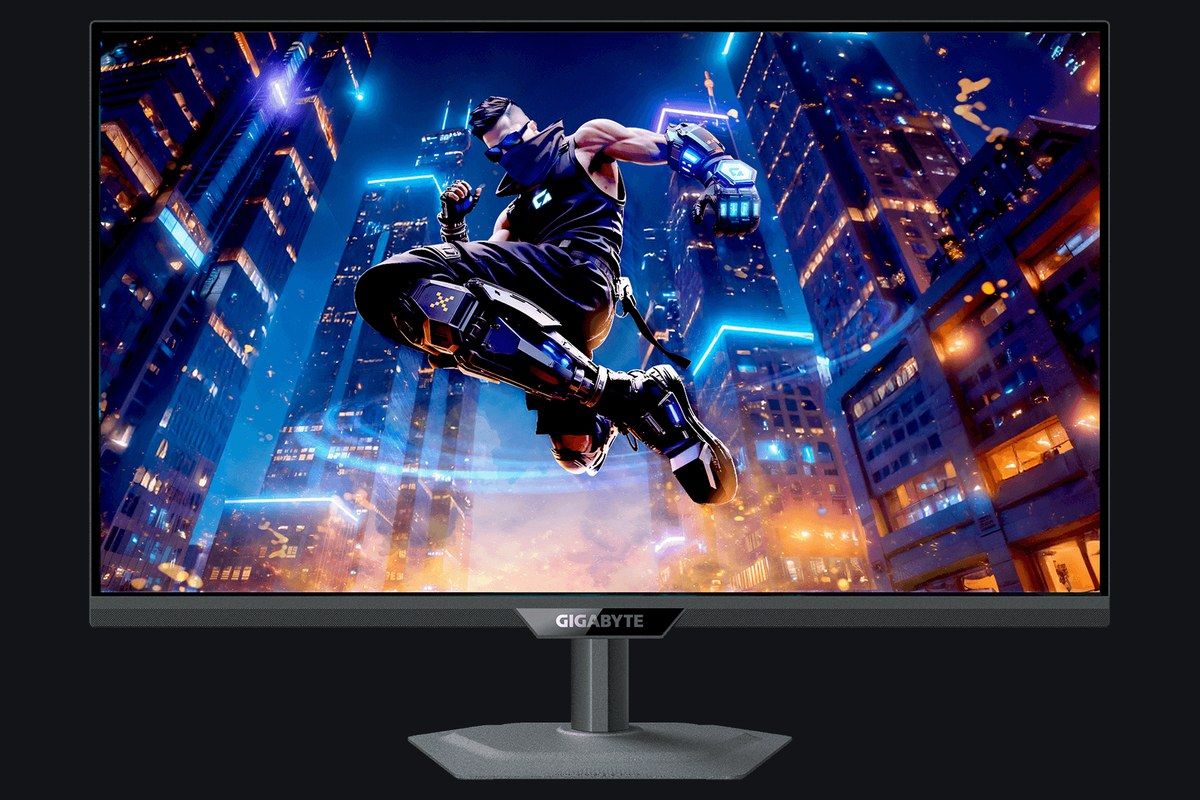
Gigabyte M27UP 27-inch 4K, official front product photo Click to enlarge

1440p or 4K: it depends on the kind of game, and on the room

After testing the machine, Digital Foundry places the sweet spot for demanding titles at native 1440p, with optimized settings, so you stay GPU-limited and keep stable frame times. Going lower can raise the frame rate, but the CPU (six-core Zen 4) can then take over as the bottleneck. Pierre-Loup Griffais presents 4K 60 fps with FSR as a reasonable target for a large part of the catalog, sometimes more in a 50-60 fps band that FreeSync then smooths out.

On a desk, a high-refresh 27-inch 1440p remains the safest choice: sharper than 1080p, more comfortable for the GPU to hold than native 4K. A 27-inch 4K panel makes sense if you also want to work, watch films, or enjoy older games and FSR. Dual-mode panels (high-refresh 4K or very high-refresh 1080p) add a competitive step on lighter games, without changing screens.

In the living room, the equation flips. On a 4K TV, it is better to output 4K (even upscaled by FSR) than 1440p that the TV then has to enlarge itself: text and the HUD hold up better. We come back to that below.

Use Reasonable target Why
Demanding games, desk Native 1440p, carefully chosen settings Sweet spot observed by Digital Foundry, GPU kept busy, a sharp image on 27 inches
Lighter or competitive games High-refresh 1440p, or 1080p in dual mode The machine has headroom; 180 or 240 Hz, or an FHD 320/485 Hz mode, is genuinely useful
Living-room TV, recent games 4K with FSR, closer to 60 fps + VRR Valve’s target; outputting 4K stops the TV from interpolating a 1440p signal
Swipe to view more

1440p: the safest choice on a desk

Two concrete options. An affordable 27-inch 180 Hz IPS, to be connected over DisplayPort so you get the full refresh rate. And a 240 Hz QD-OLED, with more contrast, now sitting in the same segment.

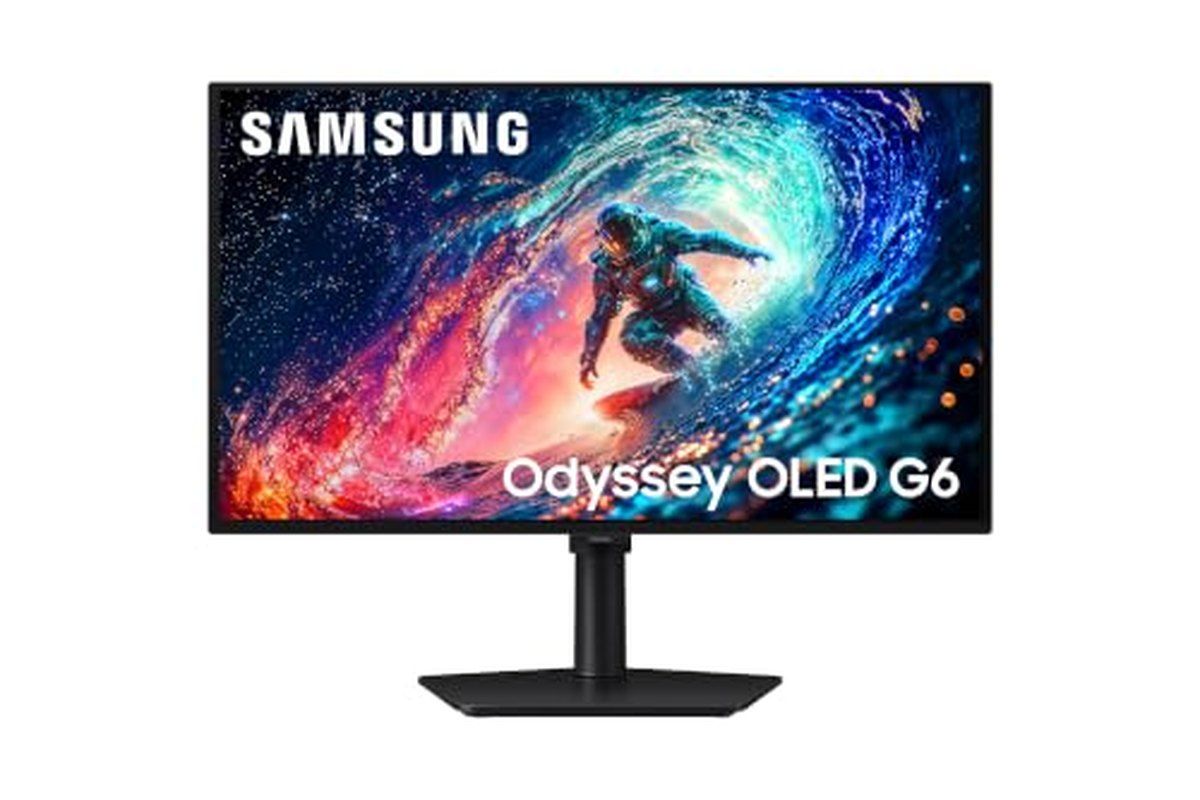
If you want the contrast of an OLED panel in the same size, the G61SH runs at 240 Hz, with an anti-glare coating and a height-adjustable stand. FreeSync Premium is included, and DisplayPort 1.4 is enough for 1440p 240 Hz.

Samsung Odyssey OLED G6 G61SH 27-inch 1440p 240 Hz

QD-OLED 2560 × 1440, 240 Hz, 0.03 ms, FreeSync Premium and DisplayPort 1.4 — the high-contrast 1440p option for the Steam Machine.

Pros
  • 27-inch QD-OLED, 2560 × 1440, 240 Hz, 0.03 ms GtG, anti-glare panel
  • DisplayPort 1.4 and HDMI 2.1, FreeSync Premium, G-Sync compatible, HDR10+ Gaming
  • Height, tilt and pivot stand; DP and HDMI cables included
Cons
  • As with any OLED, burn-in remains something to watch over time, even with the manufacturer’s protections
  • Only one HDMI port, alongside DisplayPort
FranceCheck the price in my country
Samsung Odyssey OLED G6 G61SH 27-inch, front packshot Click to enlarge

27-inch 4K: sharper, provided you accept FSR

On a 27-inch screen, 4K is very sharp, including on the SteamOS desktop. For heavy games, you will often lean on FSR rather than native 4K. All of the models below have a DisplayPort 1.4 (sometimes with DSC) that can hold their maximum refresh rate — that is the port to use with the machine.

The MAG 274UPF E2 is the simplest 4K 160 Hz recommendation: Rapid IPS, DisplayHDR 400, FreeSync, and 160 Hz over DisplayPort, HDMI 2.1 or USB-C alike. For the Steam Machine, DisplayPort is the one that matters.

The M27UP adds a genuine dual mode: 4K 160 Hz or 1080p 320 Hz, as announced by Gigabyte. Handy if you switch from a heavy game to a competitive title without changing screens. FreeSync Premium, DisplayHDR 400, KVM, and USB-C with power delivery.

At ASUS, the XG27UCG Gen 2 pushes dual mode even further: 4K 162 Hz or Full HD 485 Hz, with FreeSync Premium, G-Sync compatibility, ELMB Sync and DisplayHDR 400. DisplayPort 1.4 (HBR3) and HDMI 2.1 both hold the two modes.

ASUS ROG Strix XG27UCG Gen 2 27-inch 4K 162 Hz

Fast IPS dual mode: 4K 162 Hz or Full HD 485 Hz, FreeSync Premium, DisplayPort 1.4 HBR3 and HDMI 2.1.

Pros
  • Official dual mode: 4K 162 Hz or FHD 485 Hz, 1 ms GtG, 95% DCI-P3, DisplayHDR 400
  • DisplayPort 1.4 HBR3, HDMI 2.1 FRL, USB-C (DP Alt, 15 W), FreeSync Premium, G-Sync compatible, ELMB Sync
  • DisplayPort cable included, adjustable stand, Adaptive-Sync at 162 Hz and 485 Hz
Cons
  • It sits at the top end of this 27-inch 4K shortlist
  • No built-in speakers
FranceCheck the price in my country

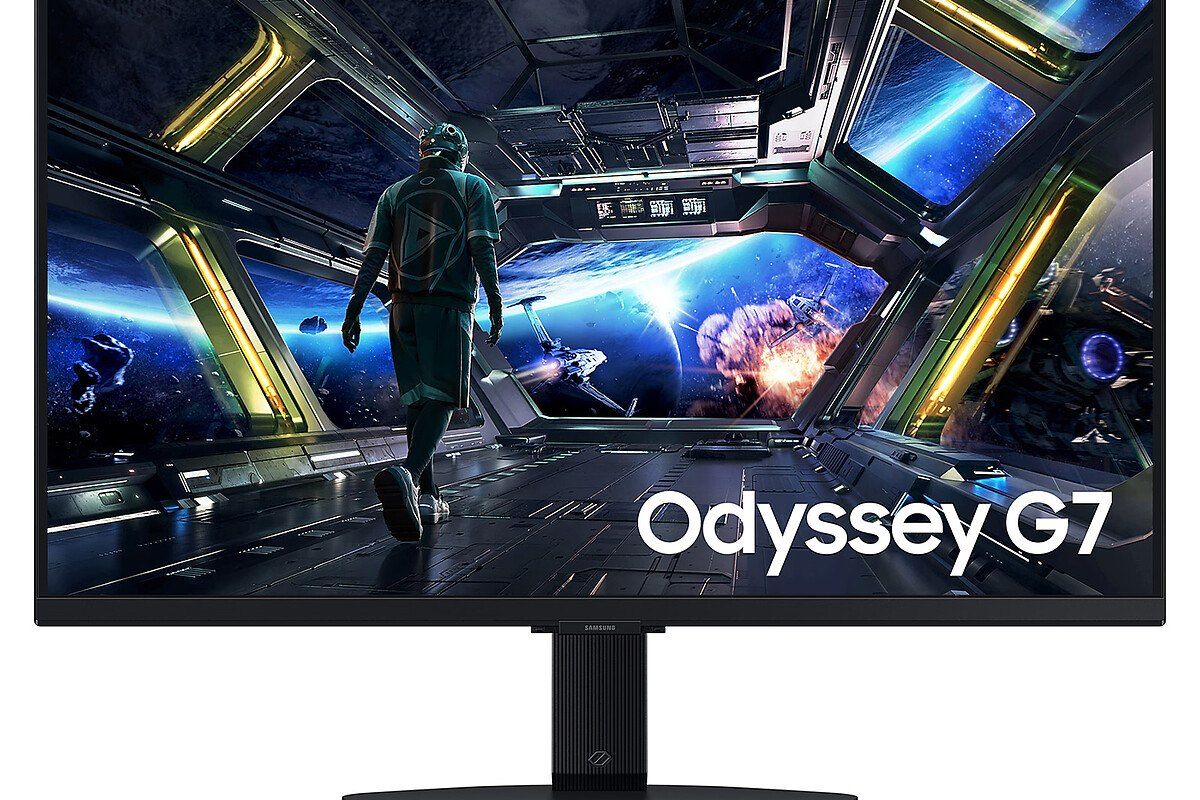
At 144 Hz, the G70D remains a bright 4K IPS (350 cd/m² typical), with DisplayHDR 400, HDR10+ Gaming, FreeSync Premium, two HDMI 2.1 ports, one DisplayPort 1.4 and HDMI CEC. It also includes Samsung’s Gaming Hub: useful if the screen is used without the machine as well, but it does not replace DisplayPort for playing on it.

Samsung Odyssey G7 G70D 27-inch 4K, front packshot Click to enlarge

The 27GR93U, already at the heart of our 27-inch 4K guide, remains a 144 Hz reference: IPS, DisplayHDR 400, FreeSync Premium, G-Sync compatible, two HDMI 2.1 ports and a DisplayPort 1.4 with DSC. LG specifies that you need DisplayPort 1.4 with DSC — or HDMI 2.1 — to hold 4K 144 Hz. With the Steam Machine, that means DisplayPort.

In the living room: a 4K TV, HDMI, and FSR

If the Steam Machine sits under the television, HDMI is the right port: you gain CEC (power-on and input switching). Stay at 4K 60 Hz, with FSR and the TV’s FreeSync / VRR, rather than forcing 4K 120 Hz with chroma subsampling. Valve designed this 4K 60 tier to reassure people who already own a 4K TV — “yes, it works with a 4K TV,” Yazan Aldehayyat told Digital Foundry.

Two caveats. First, actually output 4K, not 1440p: on a large panel, the TV would interpolate the signal, and text looks off. Second, a 120 Hz TV is still useful for lighter games, as long as you lower the internal resolution. For a console-oriented screen already in the living room, HDMI CEC and VRR matter more than the maximum 4K refresh rate on the spec sheet.

The default 1080p trap

Gamers Nexus documented it clearly: out of the box, games are capped at 1920 × 1080, even on a 4K display. Valve owns that choice: “1080p is the system default game resolution on Steam Machine to ensure a good gameplay experience out of the box, and is the resolution we use for Steam Machine Verified testing.” The setting lives in two places: each game’s maximum resolution on its Steam page, and the global Steam setting, both on “Default,” therefore 1080p.

Before you judge the screen, raise that cap to the native resolution of the monitor or TV. Valve has said it is working on a clearer interface. Until then, this is the first thing to check.

Frequently asked questions

Which monitor for the Steam Machine?

On a desk, a high-refresh 27-inch 1440p (180 or 240 Hz), connected over DisplayPort. If you also want a very sharp desktop and films, a 27-inch 4K 160 Hz panel works, with FSR in heavy games.

DisplayPort or HDMI?

DisplayPort for the monitor, HDMI for the TV (CEC). Official HDMI is 2.0, with 4K 120 Hz reached at the cost of a color compromise.

1440p or 4K?

Native 1440p for demanding games on a desk. 4K with FSR on a 4K TV, or for the desktop and lighter titles. Dual-mode panels let you switch to very high-refresh 1080p without changing screens.

Does the Steam Machine really do 4K 120 Hz?

The official sheet lists 4K 120 Hz over HDMI 2.0, and 4K 240 Hz over DisplayPort 1.4. Holding 120 frames per second at 4K in a recent, demanding game is not the target: Valve talks more about 4K 60 with FSR. HDMI 4K 120 Hz long relied on chroma subsampling.

Why do my games stay at 1080p?

That is the default cap in SteamOS on this machine, even on a 4K display. You need to raise the maximum resolution in the game’s Steam settings, and at the system level.

Which TV in the living room?

A 4K TV with VRR and, ideally, 120 Hz for lighter games. Stay on HDMI, use CEC, aim for 4K 60 with FSR, and avoid outputting 1440p on a 4K panel.

To go further on panel choice, we have already compared 1440p monitors, the best 27-inch 4K screens and screens designed for a living-room console.